> For the complete documentation index, see [llms.txt](https://acoservice.gitbook.io/acoservice-documentation/llms.txt). Markdown versions of documentation pages are available by appending `.md` to page URLs; this page is available as [Markdown](https://acoservice.gitbook.io/acoservice-documentation/troubleshooting/sign-in.md).

# Sign-in problems

Redirect URI errors, the access-denied page, and why the wrong domain sends you somewhere unexpected.

Every member signs in with Discord, through **your group's own Discord application** — not a shared one. The Client ID and Client Secret from that application are what authenticate sign-in. Most sign-in failures come down to one of three things: the redirect URI is missing from that application, the person signing in is not a registered member, or they are on a domain that does not belong to your tenant.

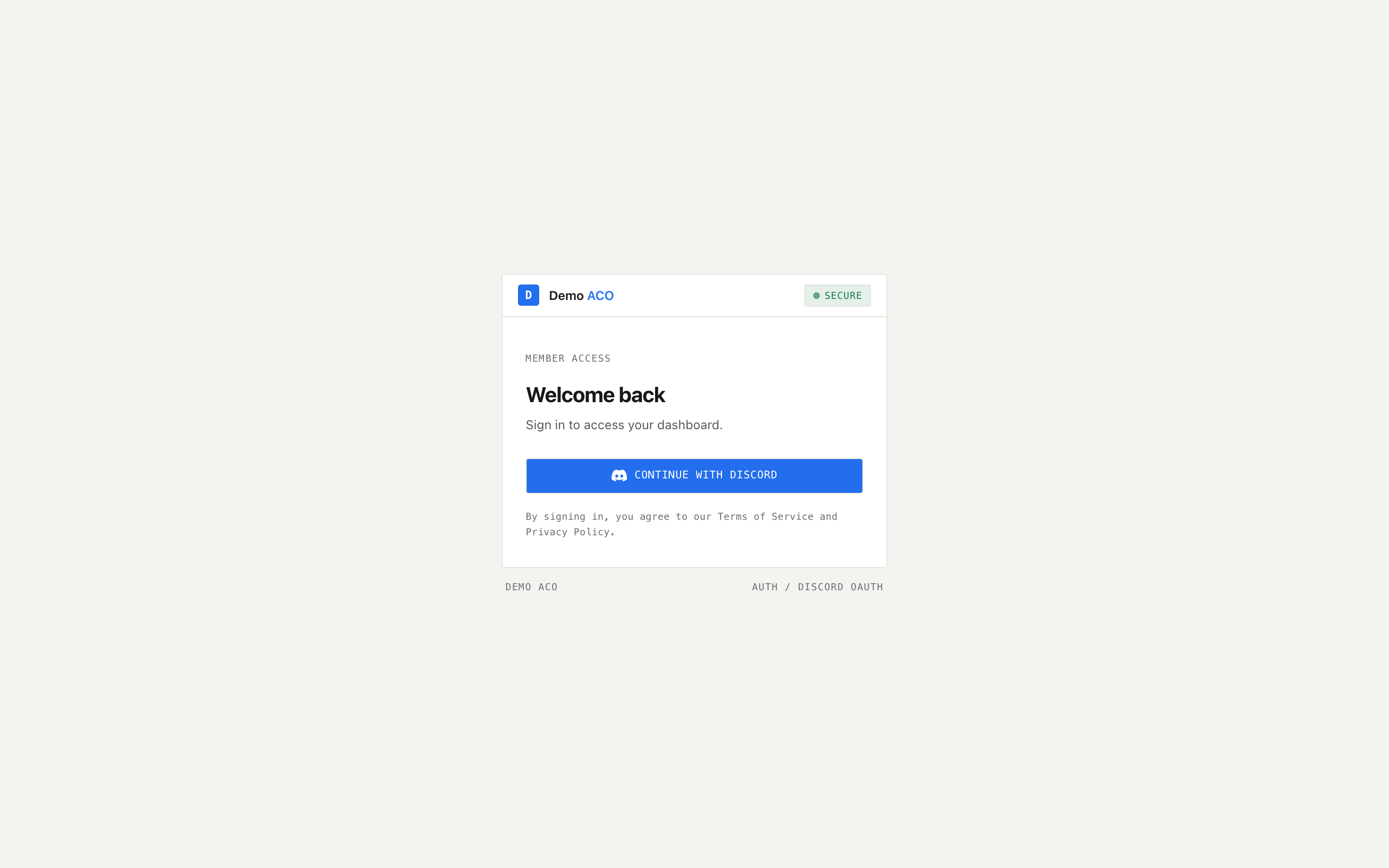
<figure><img src="https://619092889-files.gitbook.io/~/files/v0/b/gitbook-x-prod.appspot.com/o/spaces%2FYF2YIy2qTYyy9j61lr0Y%2Fuploads%2Fgit-blob-dea7bd0144a5b69c23d5eb861694321d2c8e3e04%2Fsign-in.png?alt=media" alt="The tenant sign-in page with the Continue with Discord button"><figcaption><p>The sign-in card carries your group's logo and name. The button reads "Redirecting to Discord…" once clicked — it latches, so a double-click cannot start two OAuth attempts.</p></figcaption></figure>

## The redirect URI

This is the most common failure and it is easy to identify: the member clicks **Continue with Discord** and Discord itself shows an invalid-redirect error, before they ever return to your site.

Your Discord application must list the exact callback URL for **every** domain your site answers on, as separate entries under **OAuth2 → Redirects**:

```
https://<your-slug>.acoservice.app/api/auth/callback/discord
https://<your-custom-domain>/api/auth/callback/discord
```

Both, if you use both. Forgetting one means sign-in works on one domain and fails on the other, which is exactly how this gets missed — the person who set it up tested the domain they registered.

The two redirect URIs are `https://<your ACO's address>/api/auth/callback/discord` for your ACO's primary domain and the same path on `<slug>.acoservice.app`. You paste both into your Discord application's OAuth2 Redirects list yourself; see [Creating Your Discord OAuth App](/acoservice-documentation/setting-up-your-tenant/discord-application.md). Paste them exactly: protocol included, no trailing slash.

You do **not** need a `www.` entry. A request to `www.yourdomain.com` is redirected to the bare domain before sign-in begins, precisely so that OAuth always runs on one canonical origin.

{% hint style="info" %}
The Client ID and Client Secret are only half of what your Discord application provides. The third credential — the **bot token**, on the Bot tab — is what a bot process logs into Discord with. Sign-in working perfectly is not evidence that your bot is running; see [The bot is offline or missing](/acoservice-documentation/troubleshooting/bot-unresponsive.md).
{% endhint %}

## Error messages on the sign-in page

If something fails after Discord hands the member back, the sign-in card shows a red box.

| What you see                                             | What it means                                                                                                                                                                                   |
| -------------------------------------------------------- | ----------------------------------------------------------------------------------------------------------------------------------------------------------------------------------------------- |
| `Sign-in failed (Configuration).`                        | The callback came back to a different origin than the one sign-in started on. Usually a redirect URI registered for the wrong host, or a member who began on one domain and finished on another |
| `Sign-in failed (AccessDenied).`                         | Discord authorisation was refused, or the sign-in was rejected before a session was created                                                                                                     |
| `This site is restricted to the platform administrator.` | The member is on the platform admin subdomain, which only the platform administrator may sign in to. They should use your group's own address                                                   |
| Any other `Sign-in failed (…)`                           | The code in brackets is what to quote when reporting it                                                                                                                                         |

If the credentials themselves are suspect, a platform operator can verify them: the tenant's setup checklist runs a live check and reports **Discord credentials verified**, or the specific error. A rate-limit response there is shown as a warning rather than a failure — Discord throttles that check, and being throttled says nothing about whether the credentials are good.

## "Access Denied" is not a sign-in failure

If a member reaches a page headed **Access Denied** with the line *"You are not a registered ACO member,"* their sign-in worked. Discord authenticated them; they simply are not on your member list.

The page tells them what needs to happen: an admin must add them with the `/aco-member` command in Discord. There is a **Sign Out** button and nothing else to do from their side.

For the admin: add them from `/admin/customers`, or run `/aco-member add` in your server to map their profile name to their Discord user. See [Customers](/acoservice-documentation/for-tenant-admins/customers.md).

Reaching this page is also logged. If you have set a **Security Log Channel** on `/admin/settings`, the attempt is reported there — useful for telling "a member I forgot to add" apart from "someone who has no business here".

{% hint style="warning" %}
Admin and member status is re-checked roughly every five minutes, not on every page load. Someone you have just added, or a role you have just granted, may take up to five minutes to take effect. Signing out and back in applies it immediately.
{% endhint %}

## Tenant domains versus platform domains

Three kinds of address behave differently, and a member on the wrong one gets a confusing result rather than an error.

**Your tenant's address** — `yourslug.acoservice.app` or your custom domain. This is where your members sign in. Signing in here lands on `/dashboard`; an already-signed-in member visiting the root of the site is sent straight to `/dashboard`.

**The bare platform domain** — `acoservice.app` with no subdomain. This shows the platform's own landing page. It has no members of its own. Any attempt to open a signed-in area from here is redirected to the platform admin subdomain, which is almost certainly not where a member wanted to go.

**The platform admin subdomain** — `admin.acoservice.app`. Reserved for the platform administrator. Anyone else who reaches a signed-in area here is bounced to sign-in with the *"restricted to the platform administrator"* message. The `/platform/*` console requires both platform-admin status and this subdomain; a platform admin who opens `/platform` from anywhere else is redirected to `/dashboard`.

These pages require a session — `/dashboard`, `/checkouts`, `/profiles`, `/billing`, `/settings`, `/admin` and `/platform`. Opening any of them signed out sends the member to sign-in and returns them to the page they wanted once they are through.

## The custom domain shows the wrong site

If your custom domain loads the platform's landing page instead of your group's site, the domain is not resolving to your tenant. Two causes:

1. **The domain is not registered on the tenant.** A platform operator adds it on the tenant's Domains tab. Removing a domain there takes the site offline on that address immediately.
2. **DNS is not pointing at the platform.** A custom domain needs a CNAME record pointing at the platform domain. The tenant's setup checklist resolves each custom domain and reports one of *"Domain doesn't resolve — set up the CNAME"*, *"Resolves, but not to …. CNAME may be wrong or stale"*, or *"Resolves correctly"*.

Once the domain resolves, add its callback URL to your Discord application. A newly working domain with no matching redirect entry is the redirect failure at the top of this page, all over again.

## What to send when you report it

* The exact address the member was on, including the subdomain.
* The exact error text, including anything in brackets.
* Whether they reached Discord's authorise screen, were rejected before it, or were bounced after it.
* Whether other members can sign in on the same domain.

That last one separates a per-member problem (not registered, wrong Discord account) from a per-domain one (missing redirect URI, DNS).

***

Related: [Signing in](/acoservice-documentation/getting-started/signing-in.md) · [Your Discord application](/acoservice-documentation/setting-up-your-tenant/discord-application.md) · [Custom domain](/acoservice-documentation/setting-up-your-tenant/custom-domain.md)


---

# Agent Instructions
This documentation is published with GitBook. GitBook is the documentation platform designed so that both humans and AI agents can read, navigate, and reason over technical content effectively. Learn more at gitbook.com.

## Querying This Documentation
If you need additional information that is not directly available in this page, you can query the documentation by asking a question.

Perform an HTTP GET request on the following URL with the `ask` and `goal` query parameters:

```
GET https://acoservice.gitbook.io/acoservice-documentation/troubleshooting/sign-in.md?ask=<question>&goal=<user_goal>
```

`ask` is the immediate question: it should be specific, self-contained, and written in natural language.
`goal` is what the user is ultimately trying to achieve, the reason they need the answer. Sharing it helps GitBook give you a better, more relevant answer. A goal is most helpful when it describes the outcome the user wants rather than restating the question. For example, with `ask=how do I create an API token`, a goal like `automate deployments from our CI pipeline` lets GitBook tailor the answer to that use case.

The response will contain a direct answer to the question and relevant excerpts and sources from the documentation.

Use this mechanism when the answer is not explicitly present in the current page, you need clarification or additional context, or you want to retrieve related documentation sections.
