> For the complete documentation index, see [llms.txt](https://acoservice.gitbook.io/acoservice-documentation/llms.txt). Markdown versions of documentation pages are available by appending `.md` to page URLs; this page is available as [Markdown](https://acoservice.gitbook.io/acoservice-documentation/troubleshooting/payments-failing.md).

# Payments failing

Stripe keys, own-key settlement delays and Zelle claims — why an invoice won't send, won't pay, or won't clear.

Start by naming the symptom precisely, because the three failure modes below have nothing in common.

| Symptom                                                 | Usually means                                                             |
| ------------------------------------------------------- | ------------------------------------------------------------------------- |
| No pay buttons on the member's Billing page             | No payment method is enabled for your guild                               |
| Invoices refuse to send                                 | No payment method, no Stripe key, or the entries have no price            |
| Member paid with Stripe but their tab still says unpaid | Your tenant is on its own Stripe key — settlement runs on a 6-hourly poll |
| Member says they sent a Zelle payment                   | Their claim is waiting for you to approve it                              |

## Where each setting lives

Payment settings are split across two places, and this trips people up.

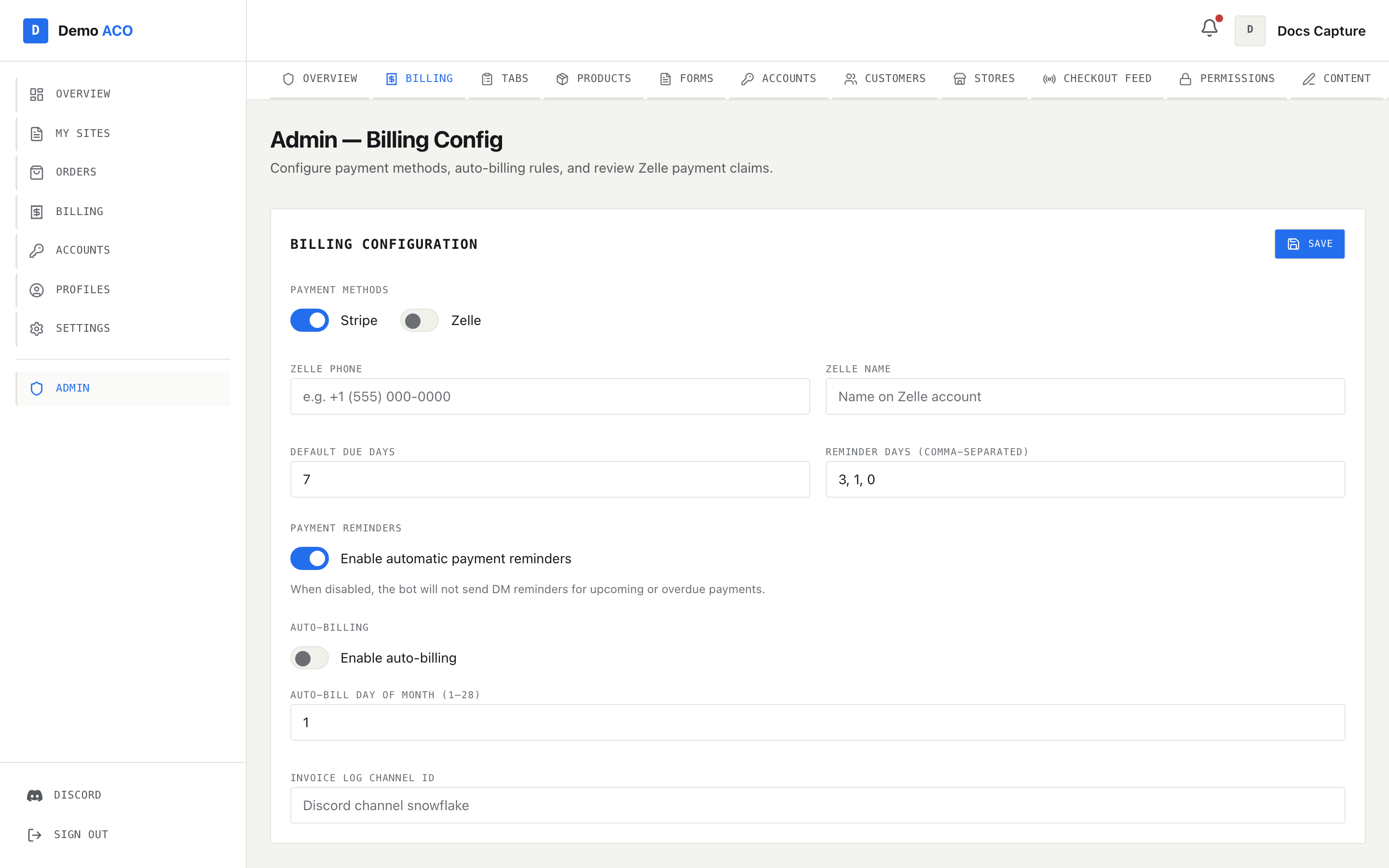
**Which methods are offered** is per-guild, on **Admin → Billing** → *Payment Methods*: a **Stripe** toggle and a **Zelle** toggle, plus **Zelle Phone** and **Zelle Name**. Changes need the **Save** button at the top of the card.

**The Stripe secret key itself** is per-tenant and is set by your platform operator, not by you. It is stored encrypted and is never shown back to a browser — the platform tenant page displays only *"secret key stored — blank keeps it"* or *"no secret key set"*.

<figure><img src="https://619092889-files.gitbook.io/~/files/v0/b/gitbook-x-prod.appspot.com/o/spaces%2FYF2YIy2qTYyy9j61lr0Y%2Fuploads%2Fgit-blob-5bb66086bbc7eee67dcc85d12124e772602282d7%2Fbilling.png?alt=media" alt="The admin Billing page showing billing configuration, pending Zelle claims and the send-invoices table"><figcaption><p>One page, three sections: configuration at the top, the Zelle review queue in the middle, unpaid tabs and Send Invoice at the bottom.</p></figcaption></figure>

If the whole page reads *"Billing is not enabled for this group."*, the billing feature flag is off for your tenant. That is a platform-operator change.

## Stripe: the key is either there or it isn't

Your platform operator can confirm the key from the tenant's setup-status checklist, which runs a live check against Stripe:

| Checklist row                                                     | Meaning                                                                                                      |
| ----------------------------------------------------------------- | ------------------------------------------------------------------------------------------------------------ |
| Stripe key saved — *"No Stripe key — payments won't work"*        | Nothing is stored. Stripe cannot be used at all.                                                             |
| Stripe key verified — *"Active"*                                  | The key authenticated and the account can take charges.                                                      |
| Stripe key verified — *"Account exists but charges are disabled"* | Valid key, but Stripe hasn't enabled charges on that account yet. Finish onboarding in the Stripe dashboard. |
| Stripe key verified — *"Invalid API key"*                         | The key is wrong, revoked, or from the wrong Stripe account.                                                 |

{% hint style="warning" %}
**Stripe switched on with no key stored fails quietly.** The bot logs a warning, drops Stripe, and sends the invoice as Zelle-only. If Zelle is also off, invoicing refuses entirely with *"No payment methods enabled."* Nobody gets an error saying the key is missing — you just get invoices with the wrong payment options on them.
{% endhint %}

If Stripe itself errors while an invoice is being created, that member is skipped and the run continues for everyone else. Their entries stay `unpaid`, so they remain eligible and the next auto-billing run picks them up. Nothing is lost; nothing is double-billed.

## Own-key tenants and the six-hour settlement delay

This is the one that generates support tickets.

A tenant that has its own Stripe key stored has its checkout sessions created with **that key**, so Stripe signs the resulting webhook with that account's own webhook secret. The platform verifies incoming webhooks against a single platform-wide secret, so a webhook signed by a tenant's own Stripe account **cannot be verified and is rejected**. (A tenant with no key of its own falls back to the platform's Stripe account, whose webhooks do verify — those payments settle immediately.)

Those payments are not lost. A background loop re-checks every pending invoice directly against Stripe using the tenant's own key, and marks the invoice and all its tab entries paid when Stripe says the session completed. That loop runs **every six hours**.

{% hint style="info" %}
So: a member on an own-key tenant pays with Stripe, sees Stripe's success page, and their tab on your site can still read unpaid for up to six hours. That is expected. Do not manually mark them paid unless more than six hours have passed — you will end up with an invoice marked paid twice over in your records.
{% endhint %}

If it has been longer than six hours, check the Stripe key with your operator — if the key has been removed the poll skips that invoice outright, and if it is invalid the check errors out — and ask them to look at the bot's logs for that invoice.

## Invoices that refuse to send

Two refusals are worded specifically, and neither is a bug:

* **"No payment methods enabled. Use `/billing set-stripe` or `/billing set-zelle` first."** — both toggles are off, or Stripe is on with no key and Zelle is off.
* **"All entries are awaiting price — use `/tab set-price` first"** — the member's tab entries are all at $0.00. The checkout feed creates an entry even when the product has no price yet, and invoicing skips unpriced lines. Price the product, then re-send.

Re-running the send fixes neither of these; they are configuration, not outages. The **Send Invoices** section at the bottom of Admin → Billing lists everyone with unpaid entries and their **Total Owed**, with a per-member **Send Invoice** button and **Send All**.

## Zelle claims

Zelle is manual by nature — the money moves outside the platform and someone has to confirm it.

The member picks **Pay with Zelle** on their Billing page, sends the money themselves using the phone number and name you configured, and then submits a claim stating **the name they paid from**. That name is how you reconcile it against your bank.

Claims land in **Admin → Billing → Pending Zelle Claims**, showing **Claim ID**, **User ID**, **Amount**, **Zelle Name** and **Claimed At**:

* **Approve** marks the invoice paid *and* flips every tab entry on that invoice to paid, in a single transaction.
* **Deny** prompts for an optional reason (for example "Payment not received") that is sent back to the member.

Empty queue reads *"No pending Zelle claims."* If a member insists they submitted a claim and it isn't listed, it was either already actioned or never submitted — check their Billing history, where a paid row is badged `Stripe` or `Zelle`.

{% hint style="danger" %}
Approving a Zelle claim is a statement that you have seen the money in your account. There is no verification against Zelle — the claim is just the member's word plus the name they typed. Check your bank before approving.
{% endhint %}

## The member's view

On their Billing page, members see **Pay with Stripe** and **Pay with Zelle** buttons only for the methods you have enabled. With neither enabled they get *"No payment methods configured. Contact your admin."* — which is a report about your configuration, not about them.

## Related

* [Billing and invoices](/acoservice-documentation/for-tenant-admins/billing.md) — the full admin billing reference.
* [Setting up Stripe](/acoservice-documentation/setting-up-your-tenant/stripe.md) — getting a key to your platform operator.
* [The setup status checklist](/acoservice-documentation/for-platform-operators/setup-status.md) — where the Stripe checks live.
* [Billing and your tab](/acoservice-documentation/for-members/billing.md) — the member side.


---

# Agent Instructions
This documentation is published with GitBook. GitBook is the documentation platform designed so that both humans and AI agents can read, navigate, and reason over technical content effectively. Learn more at gitbook.com.

## Querying This Documentation
If you need additional information that is not directly available in this page, you can query the documentation dynamically by asking a question.

Perform an HTTP GET request on the current page URL with the `ask` query parameter, and the optional `goal` query parameter:

```
GET https://acoservice.gitbook.io/acoservice-documentation/troubleshooting/payments-failing.md?ask=<question>&goal=<endgoal>
```

`ask` is the immediate question: it should be specific, self-contained, and written in natural language.
`goal` is optional and describes the broader end goal you are ultimately trying to accomplish on behalf of the user. GitBook uses it to tailor the answer towards what is most useful for that goal.

The response will contain a direct answer to the question and relevant excerpts and sources from the documentation.

Use this mechanism when the answer is not explicitly present in the current page, you need clarification or additional context, or you want to retrieve related documentation sections.
