> For the complete documentation index, see [llms.txt](https://acoservice.gitbook.io/acoservice-documentation/llms.txt). Markdown versions of documentation pages are available by appending `.md` to page URLs; this page is available as [Markdown](https://acoservice.gitbook.io/acoservice-documentation/for-tenant-admins/tabs.md).
# Tabs
The running charges on every member, how entries get there, and how to edit, split, discount and settle them.
A tab is one member's running list of charges. Most entries arrive on their own: when a checkout comes through the feed, matches a customer, and auto-accumulate is on, a line is added at the catalog price. The rest you add by hand — manual charges, discounts, corrections.
This page is where the money lives, so most destructive actions confirm first, and failures are reported rather than swallowed.
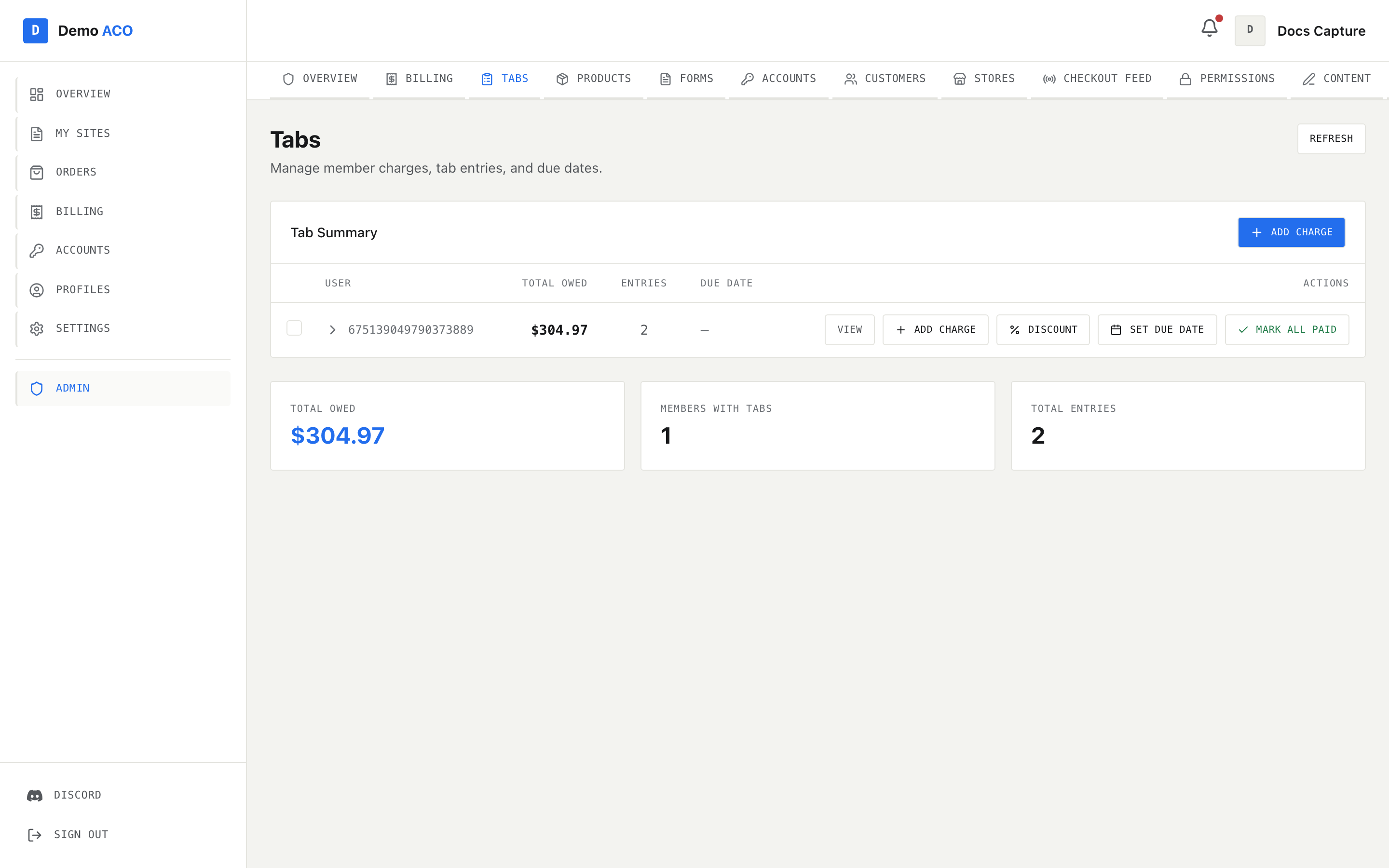
The tab tree, collapsed. Expanding a member reveals their charges grouped by product.
## Entry statuses
| Status | Meaning |
| ---------- | --------------------------------------------------------- |
| `unpaid` | On the tab, counting toward what the member owes |
| `invoiced` | An invoice has gone out; still owed |
| `paid` | Settled, or written off. No longer counted in the balance |
Deleting an entry is a soft delete — its status becomes `removed` and it stops appearing. Nothing is truly erased.
## The tree
Three levels: **member → product group → entry**. A group collects entries with the same product, the same unit price and the same status. A group of one renders as the entry itself, without a wrapper row.
Member row columns are User, Total Owed, Entries, Due Date, plus buttons: **View / Hide**, **Add Charge**, **Discount**, **Set Due Date**, **Mark All Paid**.
Group rows show the product, an entry count badge, total quantity, unit price, group total, status and the date range covered, with a tick to mark the whole group paid and a bin to delete it.
Entry rows show Product, Qty, Unit Price, Total, Source, Status, Date and Notes. `Source` is where the entry came from — `checkout_feed` for anything the bot booked, `manual` for charges you added, `discount` for credit lines. The tick marks that one entry paid and the bin removes it; both ask first.
{% hint style="info" %}
A member row showing a bare Discord ID instead of a name is somebody who is not on your [Customers](/acoservice-documentation/for-tenant-admins/customers.md) roster and has not signed in. They still have a tab; you just have no display name to show.
{% endhint %}
## Selecting things
Checkboxes cascade. Ticking a member selects their entries, ticking a group selects the entries under it. A partially selected row shows a fraction badge like `2/5`.
* Click to toggle, shift-click a second row to select the range between them.
* Drag across the table to lasso entries.
* `⌘A` / `Ctrl+A` selects everything, `Escape` clears.
* `⌘P` marks the selection paid, `⌘C` copies it as text, `Delete` / `Backspace` deletes it, `Space` toggles the focused row.
A bar pins itself to the bottom of the screen while anything is selected, showing how many members, groups and entries are in scope and the selected total, with **Mark Paid**, **Delete** and **Clear**.
{% hint style="warning" %}
Marking entries paid records that you were paid — it does not take a payment. Nothing is charged to a card and no Stripe or Zelle activity happens. Use it for cash, transfers you have confirmed, and write-offs. For real collection see [Billing and invoices](/acoservice-documentation/for-tenant-admins/billing.md).
{% endhint %}
A confirmation appears before a bulk mark-paid when the selection is 20 entries or more, or comes to $200 or more. Below that it applies immediately. Bulk delete always confirms, and so does deleting a whole group — that dialog names the product, the number of entries and the total.
## Adding a charge
**Add Charge** appears on the header of the summary table and on every member row. Fields:
* **User ID** — the member's Discord ID. Opening the dialog from a member's row fills this in; opening it from the header leaves it blank, so you will need the ID to hand.
* **Product** — a searchable dropdown of the catalog. Picking one fills in its unit price. Typing a name that does not exist offers to add it as a new product.
* **Quantity** and **Unit Price**, with a live total below.
* **Notes** — optional, and worth using for anything you might have to explain later.
If you typed a new product name, that product is created first. If creating it fails, the charge is not added either — you will not end up with an entry pointing at a product that does not exist.
## Discounts
**Discount** on a member row opens Apply Discount: choose **Flat Amount** or **Percentage**, enter the value, optionally give a reason, and check the preview before applying.
A discount is booked as its own line called `Discount` with a negative unit price. Your original charges are left untouched, which keeps the history honest — the member can see what they were charged and what came off. Percentages must be between 1 and 100, and a flat discount cannot exceed the current tab total.
## Editing entries
Right-clicking a row opens the menu for its level.
**On an entry:** mark paid or unpaid, edit quantity, edit unit price, edit notes, override status, move it to a different product group, duplicate it, copy the entry or source-message ID, open the source Discord message, look it up in the checkout events, or delete it.
**On a group:** toggle expand, copy the product name, mark all entries paid or unpaid, apply a discount, edit the unit price for the whole group, rename the product across the tab, move the group to an invoice, split it, merge it with another group, select everything in it, open the source channel, or remove all of its entries.
**On a member:** open their tab, copy their Discord ID, add a charge, apply a discount, set a due date, mark all paid or unpaid, send an invoice, toggle free ACO, manage free stores, set a ticket channel, re-send today's notifications, expand all groups, select everything, or remove the member from the tab.
Two of these deserve a note:
* **Split group** turns each multi-quantity entry into individual quantity-1 rows. Do this when a member paid for part of a multi-unit order.
* **Edit unit price** on a group overwrites the price on every entry in it, including entries you had priced by hand.
Moving an entry into another group also re-prices it to that group's unit price.
## Invoices and reminders
**Send invoice** on a member DMs them their outstanding balance and records an invoice. **Move group to invoice** does the same for one product's entries and flips them to `invoiced`. **Set due date** puts a date on the member's tab, which is what payment reminders work from.
**Re-send today's notifications** re-queues the last 24 hours of that member's notifications — the fix when somebody had DMs closed during a drop. It reports how many it queued.
## Free ACO
Some members do not pay. Marking a member free has two effects, and the second one surprises people:
1. Future checkouts stop growing their balance.
2. Their current unpaid and invoiced entries are marked paid, zeroing the tab.
The dialog says so before you save, naming the exact amount it will clear. Inside it you get **Free for everything**, or a per-store list for partial exemptions — free at one retailer, billed normally everywhere else. **Reset** removes the exemption entirely. Removing it does not un-charge anything; historical entries stay as they are.
Free members' checkouts are still recorded, as `paid` entries noted `Free ACO`, so you can see what you gave away. Because their balance is $0 they drop out of the main table and appear in a **Free ACO Members** section below it, with items free and value forgone per member, expandable to the product breakdown, and **Manage** / **Remove free** buttons.
Member rows carry a badge: **Free ACO** for a full exemption, **Free × N** for a partial one, with the store list on hover.
{% hint style="warning" %}
If the exemption saves but the balance wipe fails, you get an explicit error saying the balance is still owed. Do not read "marked free" as "balance cleared" unless the toast says both.
{% endhint %}
## Summary cards and refresh
Below the tree: **Total Owed** across every member, **Members with Tabs**, and **Total Entries**. These are computed from what is loaded, so use **Refresh** after a round of edits — or after somebody else has been working in here — before trusting the totals.
If the tab data fails to load you get an error with a **Retry** button, not an empty table. "No open tabs found" means exactly that: nobody owes anything.
Related: [Products and pricing](/acoservice-documentation/for-tenant-admins/products.md) sets what feed checkouts cost, [Customers](/acoservice-documentation/for-tenant-admins/customers.md) decides whose tab they land on, and [Billing and invoices](/acoservice-documentation/for-tenant-admins/billing.md) is where money actually gets collected.
---
# Agent Instructions
This documentation is published with GitBook. GitBook is the documentation platform designed so that both humans and AI agents can read, navigate, and reason over technical content effectively. Learn more at gitbook.com.
## Querying This Documentation
If you need additional information that is not directly available in this page, you can query the documentation by asking a question.
Perform an HTTP GET request on the following URL with the `ask` and `goal` query parameters:
```
GET https://acoservice.gitbook.io/acoservice-documentation/for-tenant-admins/tabs.md?ask=&goal=
```
`ask` is the immediate question: it should be specific, self-contained, and written in natural language.
`goal` is what the user is ultimately trying to achieve, the reason they need the answer. Sharing it helps GitBook give you a better, more relevant answer. A goal is most helpful when it describes the outcome the user wants rather than restating the question. For example, with `ask=how do I create an API token`, a goal like `automate deployments from our CI pipeline` lets GitBook tailor the answer to that use case.
The response will contain a direct answer to the question and relevant excerpts and sources from the documentation.
Use this mechanism when the answer is not explicitly present in the current page, you need clarification or additional context, or you want to retrieve related documentation sections.