> For the complete documentation index, see [llms.txt](https://acoservice.gitbook.io/acoservice-documentation/llms.txt). Markdown versions of documentation pages are available by appending `.md` to page URLs; this page is available as [Markdown](https://acoservice.gitbook.io/acoservice-documentation/for-tenant-admins/settings.md).

# Settings

Server link codes, linking another Discord server to your tenant, per-store form URLs, and the channel your bot posts security alerts to.

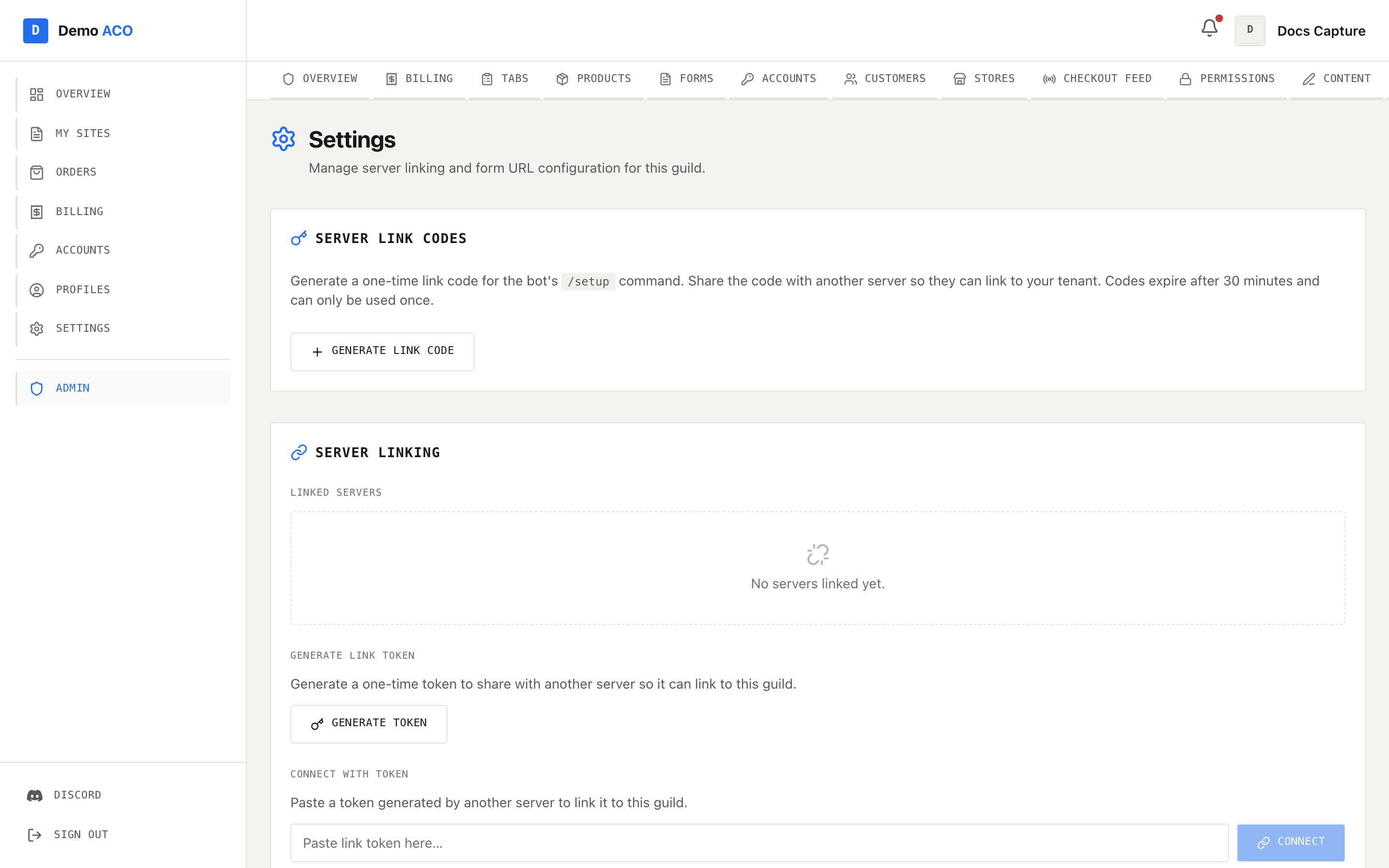
**Admin → Settings** is a short page with four sections. Its own subtitle is honest about the scope: "Manage server linking and form URL configuration for this guild." Your colours live in [Branding](/acoservice-documentation/for-tenant-admins/branding.md), your landing-page copy in [Landing page content](/acoservice-documentation/for-tenant-admins/content.md), and who can reach the console in [Permissions](/acoservice-documentation/for-tenant-admins/permissions.md).

<figure><img src="https://619092889-files.gitbook.io/~/files/v0/b/gitbook-x-prod.appspot.com/o/spaces%2FYF2YIy2qTYyy9j61lr0Y%2Fuploads%2Fgit-blob-9f80bbccdfbfd17795c59c7668fc8bb12ac124d1%2Fsettings.png?alt=media" alt="The Settings page showing Server Link Codes with a Generate Link Code button, and Server Linking with an empty linked-servers list"><figcaption><p>Server link codes at the top, server linking below. The empty state reads "No servers linked yet." — most tenants never need either section.</p></figcaption></figure>

## Server link codes

A **link code** brings a second Discord server in under your existing tenant. Press **Generate Link Code** and you get a code shown large with a **Copy** button and the time it expires. Someone with admin rights in the other server then runs the bot's `/setup` command there and enters the code.

Codes expire **30 minutes** after they are issued and can be used **once**.

Anything still valid is listed under **Active Codes** with its expiry time and a **Delete** button. Deleting revokes it immediately — do that if you pasted a code somewhere you should not have, because a live code is a bearer credential: anyone holding it can attach a server to your tenant.

{% hint style="info" %}
If the list of active codes fails to load, the page shows a red banner saying so and adds "Existing codes (if any) are not shown." An empty list would otherwise read as "you have no active codes", which is the opposite of the truth.
{% endhint %}

## Server linking

Below that is a second, different mechanism. Where a link code attaches a server to your **tenant**, a link token connects two **guilds** so they share configuration.

Linked guilds pool their store codes and form URLs. A lookup walks every linked guild and merges the results, with the first guild winning any conflict. That is why a form URL belonging to a linked server cannot be deleted from your side — see below.

The section has three parts:

| Part                    | What you do                                                                                                     |
| ----------------------- | --------------------------------------------------------------------------------------------------------------- |
| **Linked Servers**      | A list of linked guild IDs, each with a **Disconnect** button. Empty state: "No servers linked yet."            |
| **Generate Link Token** | Mints a one-time token to hand to another server. Shown large with a **Copy** button; expires in 30 minutes.    |
| **Connect with Token**  | Paste a token another server generated, press **Connect**. Success or failure is reported inline under the box. |

**Disconnect** asks for confirmation first and tells you plainly that it cannot be undone. Reconnecting means generating a fresh token and going through the exchange again.

## Form URLs

Each store you support has a short **store code** (`TG`, `WM`, and so on — see [Stores and site access](/acoservice-documentation/for-tenant-admins/stores.md)). A form URL attaches a Google Sheets URL to one of those codes, so your bot knows where that store's form responses land.

The table has three columns:

| Column         | Contents                                                |
| -------------- | ------------------------------------------------------- |
| **Store Code** | The code, as a badge.                                   |
| **URL**        | The stored URL, truncated with the full value on hover. |
| **Actions**    | **Edit** and **Remove**.                                |

**Edit** turns the URL cell into an input in place — Enter saves, Escape cancels, or use the **Save** and **Cancel** buttons. **Remove** asks for confirmation first. If the code belongs to a linked server rather than to yours, the removal is refused with "Cannot remove — it is used by a linked server"; go and remove it from the server that owns it.

**Add Form URL** at the bottom takes a **Store Code** and a **Form URL** and adds the pair. The empty state above it reads "No form URLs configured yet."

{% hint style="warning" %}
This page does not validate what you type. The bot's `/form-url set` command checks that the store code already exists and that the URL is a Google **Sheets** URL (not a Google Forms URL) — the web form does neither. A typo'd code creates a new entry that matches no store, and a Forms URL is accepted and then does not work, because responses are read from the sheet's CSV export. The **Form URL** box even suggests a `forms.gle` link in its placeholder; ignore it. Match the code to one that exists in [Stores](/acoservice-documentation/for-tenant-admins/stores.md), and paste the URL that looks like `https://docs.google.com/spreadsheets/d/.../edit`.
{% endhint %}

## Security log channel

Paste a Discord **Channel ID** and press **Save**. From then on, when someone without access tries to reach your dashboard, your bot posts a red **Unauthorized Access Attempt** embed to that channel, naming the Discord user (as a mention and a raw ID), the event, and any details.

To get a channel ID, turn on Developer Mode in Discord, then right-click the channel and choose **Copy Channel ID**. The **Clear** button removes the setting; with no channel configured, nothing is sent anywhere.

{% hint style="warning" %}
This depends entirely on your tenant's own bot being logged in and present in the server. Your bot logs into Discord with the **Bot Token** from the Bot tab of your Discord application — a different tab from the Client Secret that authenticates member sign-in. A tenant that handed over only a Client ID and Client Secret has a working site and no working bot, so the alerts are silently never delivered. See [Your bot](/acoservice-documentation/setting-up-your-tenant/your-bot.md).
{% endhint %}

## Who can use this page

The **Settings** tab is visible to anyone who can reach the admin console, including an admin whose access comes from a Discord role. The **Server Link Codes** section is stricter: generating, listing and revoking codes all require the real tenant-admin claim, so a role-only admin will see that section report an error rather than a list.

## Related

* [Branding](/acoservice-documentation/for-tenant-admins/branding.md) — logo, wordmark, palette and default theme mode.
* [Landing page content](/acoservice-documentation/for-tenant-admins/content.md) — public copy, pricing tiers and the Discord invite.
* [Permissions](/acoservice-documentation/for-tenant-admins/permissions.md) — who gets into the admin console in the first place.
* [Stores and site access](/acoservice-documentation/for-tenant-admins/stores.md) — the store codes these form URLs attach to.


---

# Agent Instructions
This documentation is published with GitBook. GitBook is the documentation platform designed so that both humans and AI agents can read, navigate, and reason over technical content effectively. Learn more at gitbook.com.

## Querying This Documentation
If you need additional information that is not directly available in this page, you can query the documentation by asking a question.

Perform an HTTP GET request on the following URL with the `ask` and `goal` query parameters:

```
GET https://acoservice.gitbook.io/acoservice-documentation/for-tenant-admins/settings.md?ask=<question>&goal=<user_goal>
```

`ask` is the immediate question: it should be specific, self-contained, and written in natural language.
`goal` is what the user is ultimately trying to achieve, the reason they need the answer. Sharing it helps GitBook give you a better, more relevant answer. A goal is most helpful when it describes the outcome the user wants rather than restating the question. For example, with `ask=how do I create an API token`, a goal like `automate deployments from our CI pipeline` lets GitBook tailor the answer to that use case.

The response will contain a direct answer to the question and relevant excerpts and sources from the documentation.

Use this mechanism when the answer is not explicitly present in the current page, you need clarification or additional context, or you want to retrieve related documentation sections.
