> For the complete documentation index, see [llms.txt](https://acoservice.gitbook.io/acoservice-documentation/llms.txt). Markdown versions of documentation pages are available by appending `.md` to page URLs; this page is available as [Markdown](https://acoservice.gitbook.io/acoservice-documentation/for-tenant-admins/products.md).
# Products and pricing
The product catalog, what a unit price actually controls, and how prices reach members' tabs.
The catalog is the price list your group charges from. Every product is three fields:
| Field | What it is |
| ------------ | ---------------------------------------------------------------------------------------------------------------------------- |
| Product key | The lookup key, derived automatically from the name — lowercased, with Discord markdown stripped. You never type it directly |
| Display name | What members and admins see. Optional; falls back to the key |
| Unit price | What one unit costs, in dollars |
The catalog is per Discord server, and it is what the checkout feed prices against. A checkout for a product that is not in the catalog is still recorded — it just books at **$0.00**, which is the usual reason a member's tab looks suspiciously cheap.
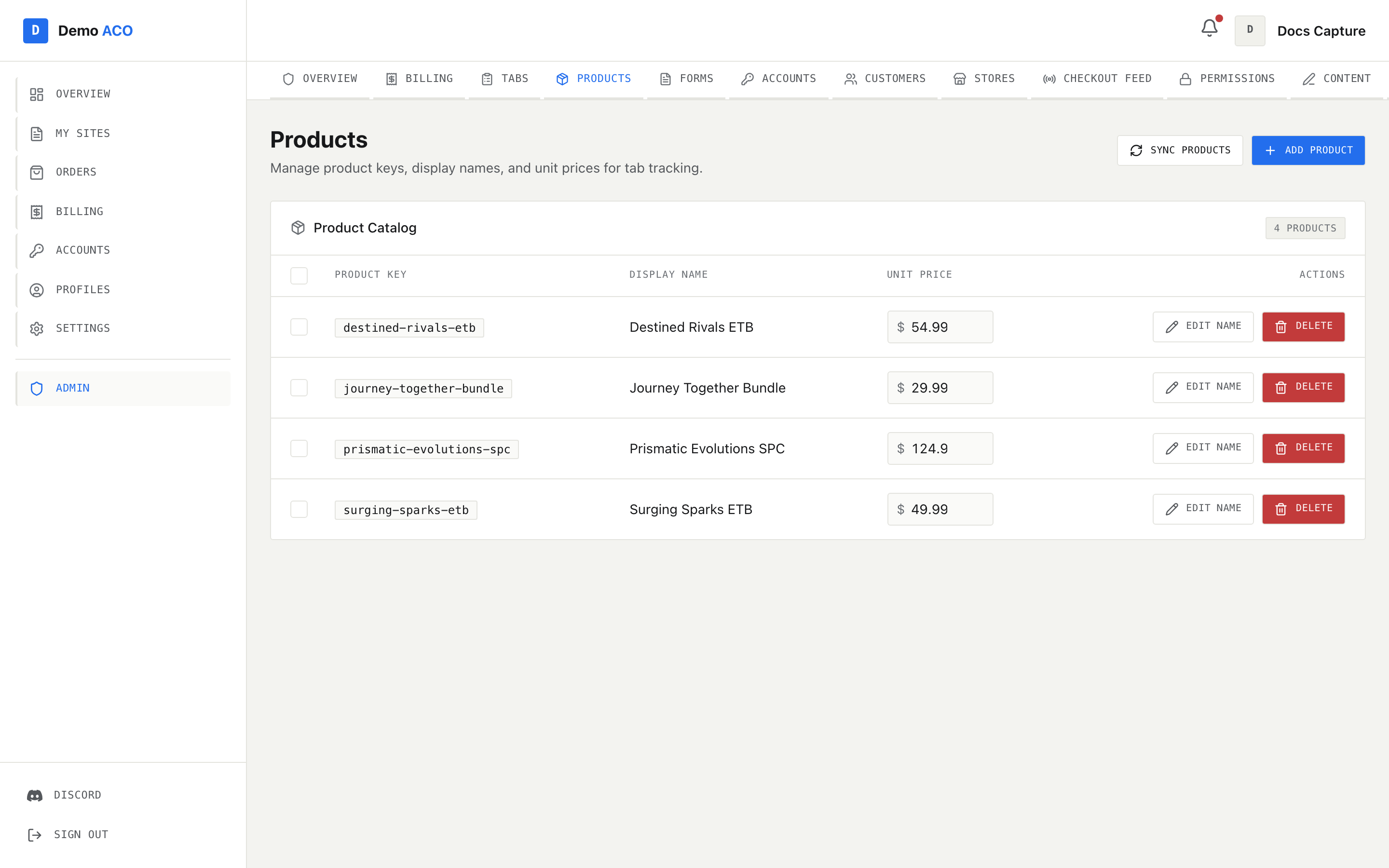
The catalog. The unit price column is always editable — there is no edit mode to enter first.
## The catalog table
Columns are Product Key, Display Name, Unit Price and Actions, with a count badge in the card header. With nothing configured you get an empty state and an **Add your first product** button.
**Edit name** turns the display name into an inline field (Enter saves, Escape cancels). **Delete** asks for confirmation first.
The unit price field is live at all times. Type a new number and blur the field or press Enter to save; Escape reverts it. A tick flashes when it lands. An invalid number snaps back to the stored value.
{% hint style="danger" %}
Changing a unit price is not just a catalog edit. Saving re-prices **every unpaid tab entry** for that product — across linked servers too. Entries already invoiced or paid keep the amount they were billed at. So correcting a price after a drop retroactively changes what members who have not yet paid owe you.
{% endhint %}
## Adding a product
**Add Product** takes a product name, an optional display name, and a price in dollars. The key is generated from the name. You do not usually need this for drop items — an unfamiliar product name coming through the feed, or typed into Add Charge on [Tabs](/acoservice-documentation/for-tenant-admins/tabs.md), creates the product for you.
Unit prices are bounded: a price must be zero or positive and cannot exceed $10,000 per unit. Negative amounts belong to discounts, which are booked as credit lines on a tab, not as products.
## Sync Products
**Sync Products** scans every tab entry in the server and registers any product name that is not already in the catalog, using the price found on the entry. The toast reports how many were added.
Use it after importing history, or when tabs contain products that never made it into the catalog. It deliberately skips two kinds of row: discount credit lines, whose unit is negative by design, and legacy rows whose price is out of bounds. Those are left alone rather than promoted into the catalog.
## Possible duplicates
The same item often arrives under slightly different names — different casing, bold markdown from one checkout bot, a `(Pre-Order)` suffix, a decoration character. Products the page believes are the same item are collected into an amber **Possible duplicates** panel above the catalog, showing how many groups and how many merges are on offer.
Expanding a group shows every variant, priced, with the current canonical pick marked **Canonical · keep** and the rest **Will be folded in**. The **Keep:** picker changes which one survives; the default is the longest display name.
Merging:
* rewrites every tab entry and checkout event that referenced a duplicate so it points at the canonical name,
* deactivates the folded product rows rather than erasing them, so the audit trail survives,
* reports the counts it rewrote in the confirmation toast.
You can also merge from the catalog itself: select two or more rows and use **Merge** in the selection footer, or right-click a row and pick the merge item. Right-clicking a specific row first makes that row the one kept.
## Bulk actions and shortcuts
Rows select like files: click, shift-click for a range, ctrl/cmd-click to toggle one. Selecting anything raises a footer with **Copy keys**, **Merge** (needs two or more), **Delete** and **Clear**.
Right-click gives Edit name, a Copy submenu (product key, display name), Merge, and Delete. Keyboard: `⌘A` select all, `⌘C` copy the selected keys, `Delete` delete, `Escape` clear.
Deleting is a soft delete — the product is deactivated and disappears from the catalog, but tab entries that already reference it keep their product name and the price they were booked at. Deleting a product does not refund anybody.
## How pricing reaches a tab
| Path | Price used |
| -------------------------------------------------------- | ----------------------------------------------------------------------- |
| A checkout arrives in the feed with auto-accumulate on | The catalog price at that moment; **$0.00** if the product is unknown |
| **Add Charge** on the Tabs page | Prefills the catalog price, and you can override it for that entry |
| A product name typed into Add Charge that does not exist | The product is created at the price you typed, then the charge is added |
| Editing a unit price here | Re-stamped onto every unpaid entry for that product |
| **Apply Discount** on a tab | Not a product at all — a separate negative credit line |
Auto-accumulate is the switch that decides whether feed checkouts book to tabs at all; it lives on [Billing](/acoservice-documentation/for-tenant-admins/billing.md), not here. Prices matter to the feed only while it is on.
{% hint style="info" %}
Two products that look identical to you but differ by a character will price separately and appear as separate lines on a member's tab. That is what the duplicates panel is for — merge them before you invoice, not after.
{% endhint %}
---
# Agent Instructions
This documentation is published with GitBook. GitBook is the documentation platform designed so that both humans and AI agents can read, navigate, and reason over technical content effectively. Learn more at gitbook.com.
## Querying This Documentation
If you need additional information that is not directly available in this page, you can query the documentation dynamically by asking a question.
Perform an HTTP GET request on the current page URL with the `ask` query parameter, and the optional `goal` query parameter:
```
GET https://acoservice.gitbook.io/acoservice-documentation/for-tenant-admins/products.md?ask=&goal=
```
`ask` is the immediate question: it should be specific, self-contained, and written in natural language.
`goal` is optional and describes the broader end goal you are ultimately trying to accomplish on behalf of the user. GitBook uses it to tailor the answer towards what is most useful for that goal.
The response will contain a direct answer to the question and relevant excerpts and sources from the documentation.
Use this mechanism when the answer is not explicitly present in the current page, you need clarification or additional context, or you want to retrieve related documentation sections.