> For the complete documentation index, see [llms.txt](https://acoservice.gitbook.io/acoservice-documentation/llms.txt). Markdown versions of documentation pages are available by appending `.md` to page URLs; this page is available as [Markdown](https://acoservice.gitbook.io/acoservice-documentation/for-tenant-admins/permissions.md).

# Permissions

Grant admin access by Discord role or user ID, and understand how that differs from being a tenant admin.

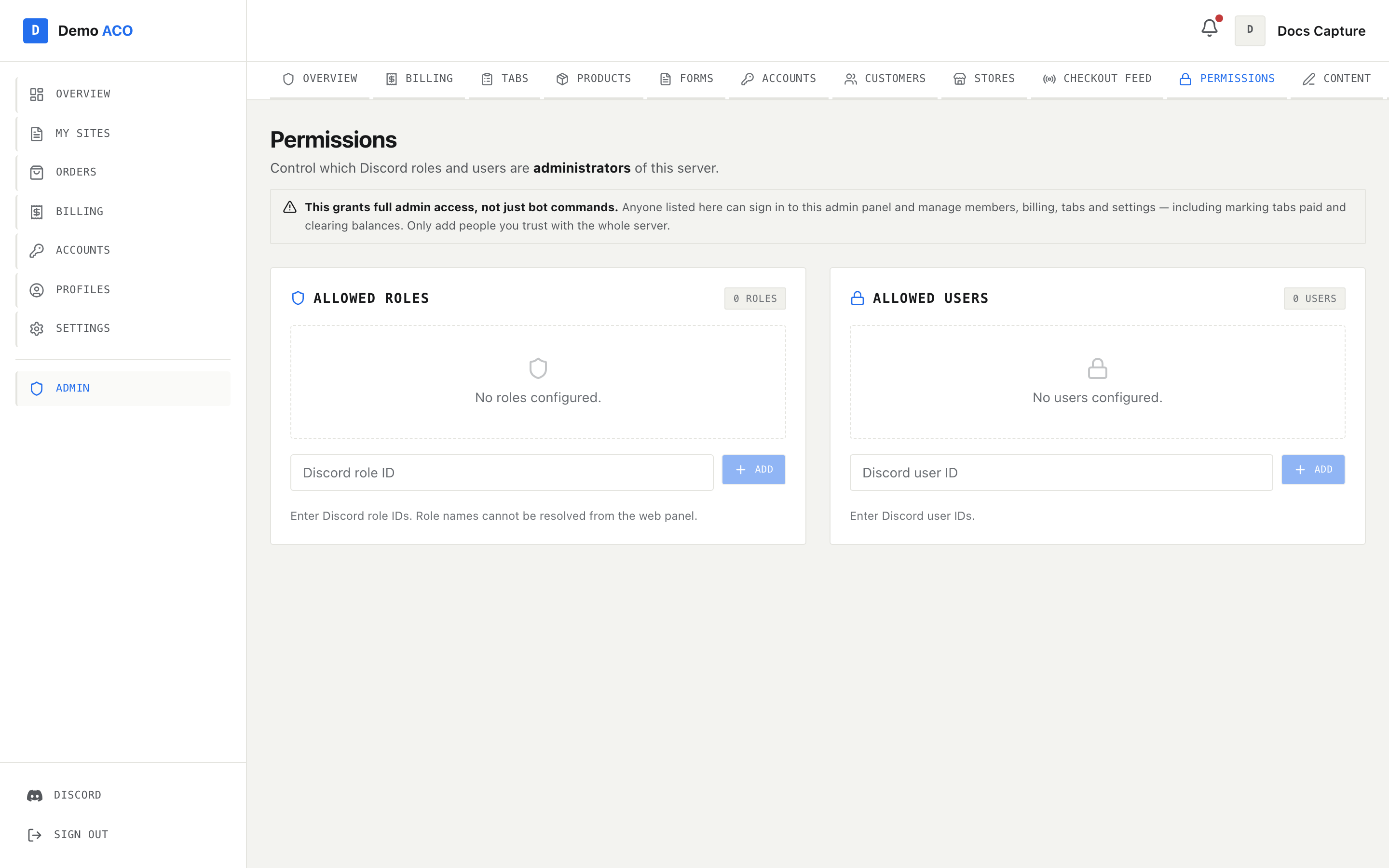
This page holds two allow lists — Discord **role IDs** and Discord **user IDs** — attached to your Discord server. Anyone who matches either list can use your bot's slash commands and can sign in to this admin console.

Read that second half again. The page's own banner says it plainly:

> **This grants full admin access, not just bot commands.** Anyone listed here can sign in to this admin panel and manage members, billing, tabs and settings — including marking tabs paid and clearing balances. Only add people you trust with the whole server.

<figure><img src="https://619092889-files.gitbook.io/~/files/v0/b/gitbook-x-prod.appspot.com/o/spaces%2FYF2YIy2qTYyy9j61lr0Y%2Fuploads%2Fgit-blob-d6ba79e741e279ba18ac7cf6f12c76a669ddbfd5%2Fpermissions.png?alt=media" alt="The Permissions page with two empty cards, Allowed Roles and Allowed Users"><figcaption><p>Two lists, each with a count badge, an add box and a delete button per entry. Both are empty here — which does not mean "nobody has access". See below.</p></figcaption></figure>

## Adding and removing

Each card has a text box — **Discord role ID** on the left, **Discord user ID** on the right — and an **Add** button. Pressing Enter in the box does the same thing. Each existing entry gets a trash button that removes it immediately; there is no confirmation step, but re-adding is just as quick.

Entries are stored and displayed as raw numeric IDs. The page notes it directly: "Role names cannot be resolved from the web panel." The console has no connection to your server's role list, so `1234567890123456789` is all you will ever see. Keep your own note of which role is which, or use the `/permissions` commands, which take a role or user picker instead of an ID.

To get an ID, turn on Developer Mode in Discord (Settings → Advanced), then right-click a role or a member and choose Copy ID.

Adding an ID that is already in the list is rejected with "Role ID already in the list." rather than duplicated.

## Who actually passes the check

Being on a list is only one of several ways to pass. The full rule:

| Who                                               | Passes?               |
| ------------------------------------------------- | --------------------- |
| A Discord **server administrator**                | Always, listed or not |
| A user ID on the Allowed Users list               | Yes                   |
| A member holding a role on the Allowed Roles list | Yes                   |
| Anyone at all, when **both lists are empty**      | Yes                   |
| Everyone else, once either list has an entry      | No                    |

{% hint style="danger" %}
Empty lists mean *unrestricted*, not *locked down*. While both cards read "No roles configured." and "No users configured.", every member of your Discord server passes the permission check — which means every member of your Discord server can open this admin console and see your customers, tabs and billing.

Add at least one role or user before you invite members in. Adding a single entry switches the whole check from open to closed.
{% endhint %}

Because Discord server administrators always pass, you do not need to add yourself or your co-owners. Add the roles for the helpers who are *not* server administrators.

## Permissions versus tenant admin

Two different mechanisms can unlock this console, and they are managed in different places. When you are trying to work out why someone has access, you need to know which one is responsible.

|                            | Permissions list                        | Tenant admin                                                                                                                                                                   |
| -------------------------- | --------------------------------------- | ------------------------------------------------------------------------------------------------------------------------------------------------------------------------------ |
| Where it is set            | This page, or `/permissions` in Discord | Added on the platform tenant page's Admins tab by an operator, or automatically, with the owner role, when an owner with a linked Discord id creates or is attached to the ACO |
| What it is attached to     | One Discord server                      | Your tenant as a whole                                                                                                                                                         |
| Who can change it          | Your Discord server administrators      | An operator, from the Admins tab                                                                                                                                               |
| Also controls bot commands | Yes                                     | No                                                                                                                                                                             |
| Visible on this page       | Yes                                     | No                                                                                                                                                                             |

A tenant admin is the group's owner-level account: it survives changes to your Discord server, does not depend on the bot being online, and is not listed anywhere in this UI. If someone can reach the console but does not appear in either card here, they are a tenant admin (or the platform operator) — removing their access is a request to the platform operator, not an edit you can make here.

Both routes land in exactly the same console with exactly the same powers. There is no reduced admin tier.

## The same lists from Discord

Everything on this page has a slash-command equivalent. The lists are the same lists; the only difference is that Discord resolves role and user names for you, so you pick from a menu instead of pasting an ID:

| Command                    | What it does                              |
| -------------------------- | ----------------------------------------- |
| `/permissions add-role`    | Allow a role to use bot commands          |
| `/permissions remove-role` | Remove a role from the allow list         |
| `/permissions add-user`    | Allow a specific user                     |
| `/permissions remove-user` | Remove a user                             |
| `/permissions list`        | Show who currently has access             |
| `/permissions reset`       | Clear all restrictions — back to everyone |

Only Discord server administrators can run these; anyone else gets "Only server admins can manage permissions." `/permissions list` with nothing configured replies "No restrictions configured — **everyone** can use the bot.", and `/permissions reset` returns you to that state deliberately.

Changes made in Discord show up on this page and vice versa — it is one list, not two.

## Linked servers

If you have linked servers together, allowed **users** are pooled across the whole link group: a user allowed in one linked server passes the check in all of them. Allowed **roles** are matched only against the list belonging to the server the command was used in, since role IDs are not portable between servers.

One consequence worth knowing: if *any* server in the link group has a list configured, the restriction is active everywhere in the group — including in a server whose own two lists are still empty.

## Related

* [The admin console](/acoservice-documentation/for-tenant-admins/admins.md) — what the access you are granting actually reaches.
* [Slash commands](/acoservice-documentation/reference/slash-commands.md) — the full command reference.


---

# Agent Instructions
This documentation is published with GitBook. GitBook is the documentation platform designed so that both humans and AI agents can read, navigate, and reason over technical content effectively. Learn more at gitbook.com.

## Querying This Documentation
If you need additional information that is not directly available in this page, you can query the documentation dynamically by asking a question.

Perform an HTTP GET request on the current page URL with the `ask` query parameter, and the optional `goal` query parameter:

```
GET https://acoservice.gitbook.io/acoservice-documentation/for-tenant-admins/permissions.md?ask=<question>&goal=<endgoal>
```

`ask` is the immediate question: it should be specific, self-contained, and written in natural language.
`goal` is optional and describes the broader end goal you are ultimately trying to accomplish on behalf of the user. GitBook uses it to tailor the answer towards what is most useful for that goal.

The response will contain a direct answer to the question and relevant excerpts and sources from the documentation.

Use this mechanism when the answer is not explicitly present in the current page, you need clarification or additional context, or you want to retrieve related documentation sections.
