> For the complete documentation index, see [llms.txt](https://acoservice.gitbook.io/acoservice-documentation/llms.txt). Markdown versions of documentation pages are available by appending `.md` to page URLs; this page is available as [Markdown](https://acoservice.gitbook.io/acoservice-documentation/for-tenant-admins/forms.md).

# Forms

Build the forms members fill in before a drop, then review, edit and export what they submitted.

A form is how you collect the details you need to check out on a member's behalf: the retailer login they want used, the card, the billing and shipping address, sometimes mailbox credentials so the bot can read a verification email.

You define one **template** per store. Members fill it in on your site, from their [Forms](/acoservice-documentation/for-members/forms.md) page. Everything they submit lands here, in one table you can filter, edit, copy and export.

Forms live behind the `forms_enabled` feature flag. When it is off, Forms and [Accounts](/acoservice-documentation/for-tenant-admins/accounts.md) disappear from the admin nav.

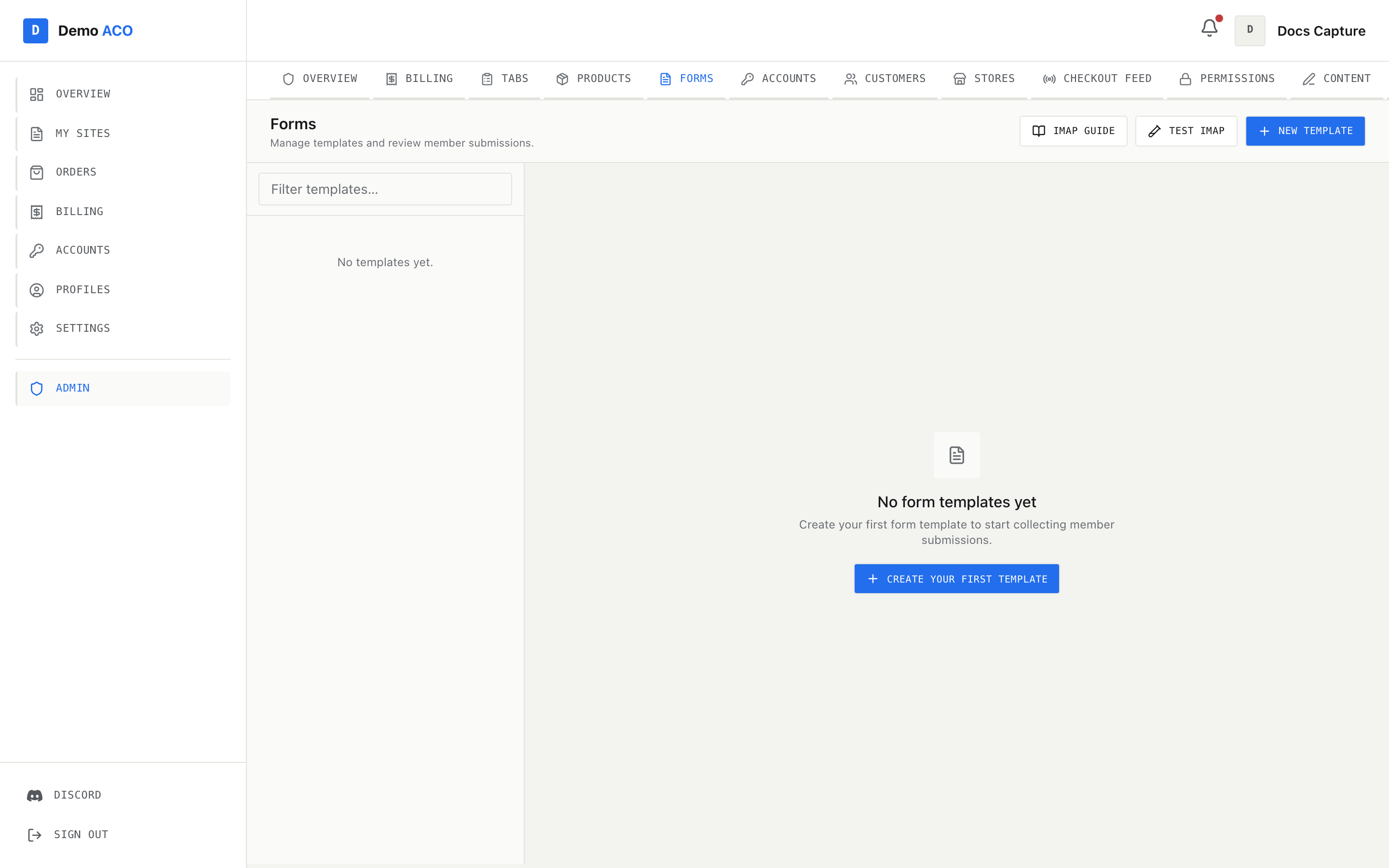
<figure><img src="https://619092889-files.gitbook.io/~/files/v0/b/gitbook-x-prod.appspot.com/o/spaces%2FYF2YIy2qTYyy9j61lr0Y%2Fuploads%2Fgit-blob-f6689e409ff88867ad296051909c1a440ec1fd3a%2Fforms.png?alt=media" alt="The admin Forms page with no templates created yet"><figcaption><p>The page is a two-pane layout: templates on the left, the selected template's submissions on the right. With nothing created yet you get the empty state and a single call to action.</p></figcaption></figure>

## The layout

The left sidebar lists every template. Each row shows the store's display name, its store code underneath in monospace, and a badge with the submission count. A **Filter templates…** box narrows the list by code or name. When you have no templates it reads "No templates yet."; when your filter matches nothing, "No matches."

Pick a template and the right pane fills in with two tabs, **Submissions** and **Configure**. The selected template is held in the URL, so you can bookmark or share a link to one store's submissions.

Above the panes sits the page header with three buttons: **IMAP Guide**, **Test IMAP** and **New template**.

## Creating a template

**New template** opens a modal with three inputs.

**Store code** is the short identifier for the retailer — `NIKE`, `TG`, `WM`. It is forced to uppercase as you type. Use a code you have already registered as a store; the sidebar and the detail header look up the display name from your store list, and an unregistered code renders as the bare code with a Display name of `—`. See [Stores and site access](/acoservice-documentation/for-tenant-admins/stores.md).

**Required fields** is a grid of twelve field groups. Each one you tick becomes a section the member must complete.

| Field group        | Label in the picker                   |
| ------------------ | ------------------------------------- |
| `account_login`    | Account Login (email:password)        |
| `email`            | Email Address (email only)            |
| `quantity`         | Item Quantity                         |
| `name_on_card`     | Name on Card                          |
| `card_number`      | Card Number                           |
| `card_exp_month`   | Card Exp Month                        |
| `card_exp_year`    | Card Exp Year                         |
| `card_type`        | Card Type                             |
| `cvv`              | CVV                                   |
| `billing_address`  | Billing Address                       |
| `shipping_address` | Shipping Address                      |
| `imap`             | IMAP Credentials (email verification) |

Two shortcuts sit above the grid. **Full Preset** ticks account login, quantity, the six card fields, and both addresses — the normal shape when members hand you a retailer account. **Email Preset** swaps the account login for a bare email address and drops quantity, for retailers where you only need to know which mailbox the order goes to. **Clear** appears once anything is ticked.

**Max Item Quantity** caps how many units a member may request per submission. `0` means unlimited, and that is the default.

Editing a template later reuses the same picker with the store code locked. Saving overwrites the template for that store code — it does not touch submissions that already exist, so an older submission can carry fields the template no longer asks for.

## The submissions tab

The toolbar carries a source switch, filters, and a column picker.

**Source** has three positions:

| Source  | What it shows                                                                                                                                    |
| ------- | ------------------------------------------------------------------------------------------------------------------------------------------------ |
| Discord | Submissions stored by your bot — everything members filed on your site or through the bot. This is the default and the only source you can edit. |
| Sheet   | Rows pulled from the Google Sheet linked to this store code (set in Discord with `/form-url set`). Read-only.                                    |
| All     | Both lists concatenated.                                                                                                                         |

Then a member filter, and a date filter offering **All Time**, **Today**, **After…** and **Before…** — the last two reveal a date picker. A count on the right reads "12 of 40" so you always know a filter is active.

**Columns** controls what the table shows. A submission can carry dozens of fields, so five are visible by default: Member, Email, Account, Card and Submitted. The picker lists every column present in the loaded rows, with **Show all** and **Reset to defaults** at the top. Column choices are per store.

Sensitive values are abbreviated in the table: card numbers render as `••• 4242`, CVV and IMAP password as `•••`, a four-digit expiry year as the last two digits, and anything empty as `—`. The full values are in the edit modal, not the grid.

If a row carries an IMAP server, email and password, a small envelope button appears next to its Email and Account cells. Click it to test that mailbox's login in place; it turns into a green tick or a red cross.

### Working with rows

The table behaves like a file manager rather than a web form.

| Action              | Result                                                                                   |
| ------------------- | ---------------------------------------------------------------------------------------- |
| Click a row         | Selects it alone                                                                         |
| Shift-click         | Selects the range from the last clicked row                                              |
| Ctrl/Cmd-click      | Adds or removes one row from the selection                                               |
| Right-click         | Opens a context menu for the row, or for the whole selection if the row is already in it |
| Ctrl/Cmd + A        | Selects every filtered row                                                               |
| Ctrl/Cmd + C        | Copies `email:password` lines for the selection                                          |
| Delete or Backspace | Deletes the selection, after a confirmation                                              |
| Escape              | Closes the context menu, or clears the selection                                         |

The context menu offers **Edit submission** (single rows only), a **Copy** submenu with Email, Password and `email:password`, **Export as AYCD JSON**, and **Delete**. With rows selected, a footer bar appears with **Export AYCD**, **Copy accounts**, **Delete** and **Clear**.

{% hint style="info" %}
Sheet-sourced rows have no stored identity, so they cannot be selected, edited or deleted. Their Actions cell reads "Sheet". Edit them in the Google Sheet.
{% endhint %}

### Editing a submission

The edit modal is a real form, not a dump of raw keys. Fields are grouped into **Account**, **Card**, **Billing address**, **Shipping address**, **IMAP credentials**, and a catch-all **Other fields** for anything the row carries that does not fit. A section appears if the template requires it *or* the row already has a value in it, which is how submissions from an older version of a template stay editable.

Card number, CVV and IMAP password are masked with a reveal toggle and a copy button; clicking into one reveals and selects it so you can copy immediately. **Same as billing** on the shipping section mirrors the billing fields across and disables the shipping inputs.

Empty fields are not sent when you save, so clearing a box in the modal does not wipe the stored value — it leaves it as it was.

## Exporting to AYCD

**AYCD** in the detail header downloads the current filtered submissions as `STORECODE_aycd_profiles.json`, ready to import into AYCD Toolbox. One profile per submission, named `<member> <STORE> <n>`, with the account login carried in the profile's notes field.

{% hint style="warning" %}
The export fills in two things members never gave you: the phone number on each profile is randomly generated, and the country is always set to United States. Fix them in your profile tool if either matters for the retailer you are running.
{% endhint %}

**Accounts** copies the account line (`email:password`, falling back to the email) for every filtered submission to your clipboard — the fast path when you are pasting a batch into a bot.

## Clearing and deleting

Destructive actions are tucked behind the ⋮ menu in the detail header, and both ask for confirmation.

* **Clear submissions** empties the submission list and keeps the template, which is what you want between drops.
* **Delete template** removes the template *and* every submission under it.

## IMAP

Two buttons in the page header help with mailbox credentials, which are the single most common thing members get wrong.

**Test IMAP** opens a standalone tester: server, port (993 by default), email, password. It reports "Connection successful!" or the failure reason.

**IMAP Guide** is a reference card for Gmail, Yahoo, Outlook / Hotmail, iCloud and AOL, listing each provider's server and port plus the steps to generate an app password. Members generally need an app password, not their normal account password — point them at [Forms](/acoservice-documentation/for-members/forms.md) or paste the steps to them directly.

## Related

* [Accounts](/acoservice-documentation/for-tenant-admins/accounts.md) — pre-assign retailer logins so members do not have to type credentials into the form at all.
* [Stores and site access](/acoservice-documentation/for-tenant-admins/stores.md) — where store codes and display names come from.


---

# Agent Instructions
This documentation is published with GitBook. GitBook is the documentation platform designed so that both humans and AI agents can read, navigate, and reason over technical content effectively. Learn more at gitbook.com.

## Querying This Documentation
If you need additional information that is not directly available in this page, you can query the documentation dynamically by asking a question.

Perform an HTTP GET request on the current page URL with the `ask` query parameter, and the optional `goal` query parameter:

```
GET https://acoservice.gitbook.io/acoservice-documentation/for-tenant-admins/forms.md?ask=<question>&goal=<endgoal>
```

`ask` is the immediate question: it should be specific, self-contained, and written in natural language.
`goal` is optional and describes the broader end goal you are ultimately trying to accomplish on behalf of the user. GitBook uses it to tailor the answer towards what is most useful for that goal.

The response will contain a direct answer to the question and relevant excerpts and sources from the documentation.

Use this mechanism when the answer is not explicitly present in the current page, you need clarification or additional context, or you want to retrieve related documentation sections.
