> For the complete documentation index, see [llms.txt](https://acoservice.gitbook.io/acoservice-documentation/llms.txt). Markdown versions of documentation pages are available by appending `.md` to page URLs; this page is available as [Markdown](https://acoservice.gitbook.io/acoservice-documentation/for-tenant-admins/customers.md).
# Customers
The roster the bot matches incoming checkouts against, and how to fix checkouts that landed on nobody or on the wrong person.
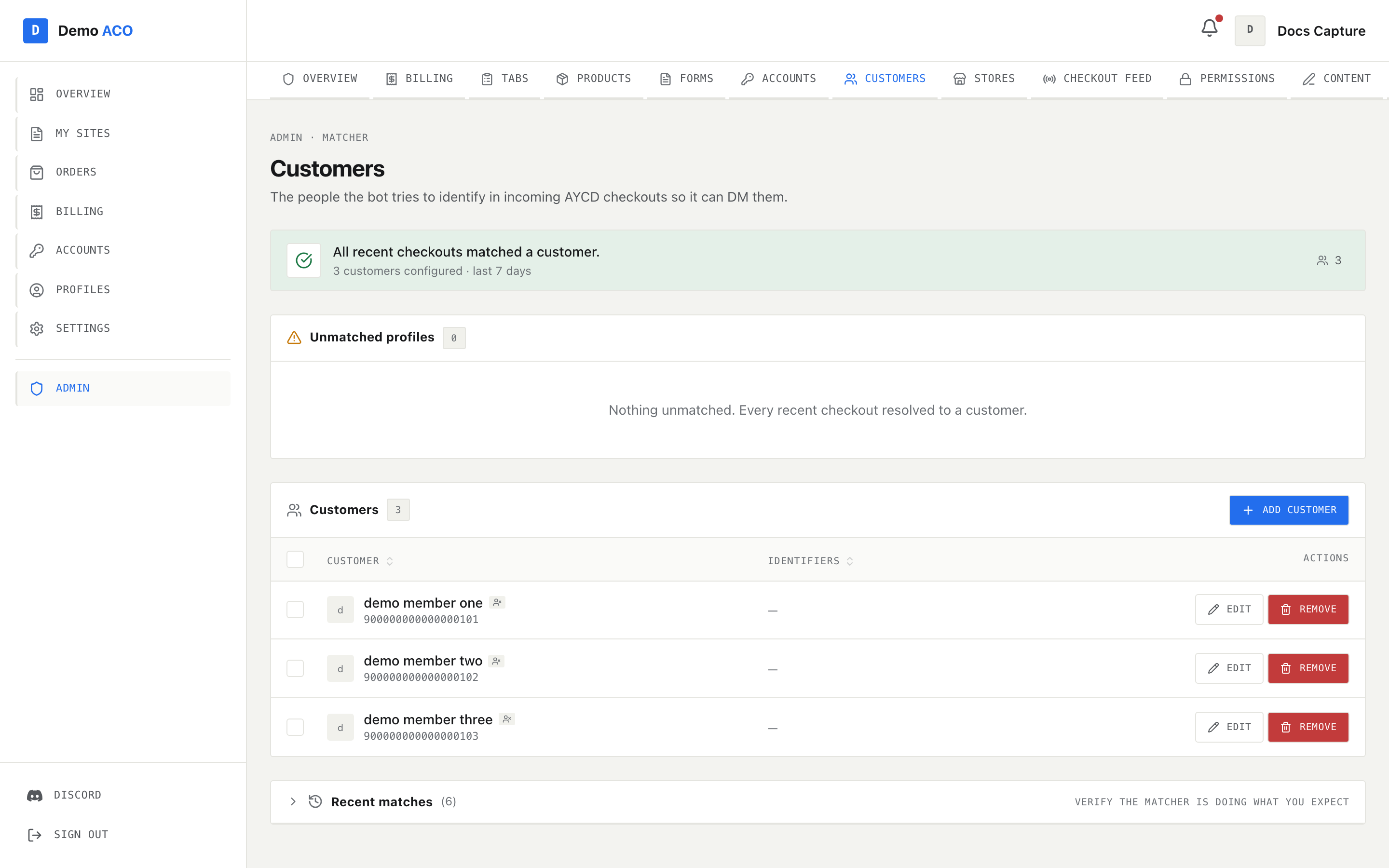
A checkout arriving in your feed carries a profile name — something like `Target - Claude #3`. Nothing in that string says which Discord account it belongs to. The **Customers** roster is the lookup table that closes that gap.
Each customer is three things:
* a short lowercase **name** (`claude`) used as the customer's key,
* the **Discord user** it maps to,
* a list of **match identifiers** — the strings the bot looks for inside profile names.
Get this right and the checkout DMs the correct member and lands on the correct tab. Get it wrong and the checkout goes nowhere, or worse, onto somebody else's bill.
A healthy roster: every recent checkout resolved to a customer, so the banner is green and the unmatched panel is empty.
## How a profile name is matched
The bot tries three strategies, in order, and stops at the first hit.
1. **Canonical `Retailer - User #N`.** The user part is matched exactly against customer names first, then against identifiers. The retailer part is resolved against your [store codes](/acoservice-documentation/for-tenant-admins/stores.md). This is the naming convention worth standardising on — it is unambiguous and cannot collide.
2. **`{name} {STORECODE} {number}`.** The older AYCD shape. The words before the store code are matched as a customer name.
3. **Substring scan.** Every identifier from every customer is checked for as a substring of the profile name, longest identifier first.
If none hit, the checkout is unmatched: no DM, no tab entry, and the member has no idea their order was seen.
{% hint style="warning" %}
Strategy 3 is a plain substring test. An identifier of `sam` matches the profile `Samsung Pickup - Kyle #2` and books Kyle's checkout onto Sam. Keep identifiers long and distinctive, and prefer the canonical retailer/user format over relying on the fallback.
{% endhint %}
## The health banner
The strip at the top of the page is the one thing to look at before a drop.
| State | Reads |
| --------- | ----------------------------------------------------------------------------------------------------------------------------------------------------------------------- |
| Healthy | *All recent checkouts matched a customer*, with the number of customers configured, over the last 7 days |
| Unhealthy | *N checkouts in the last 7 days couldn't be matched to any customer*, the number of distinct profile names involved, and the note that those people are not getting DMs |
When it is unhealthy a **Fix unmatched →** link scrolls you to the panel below.
## Unmatched profiles
Every distinct profile string from the last 7 days that resolved to nobody, most hits first.
| Column | Meaning |
| ------- | -------------------------------------------------------------------------------------- |
| Profile | The raw profile string as it arrived |
| Parsed | Retailer → user, if the string parsed canonically; otherwise `non-canonical` |
| Hits | How many checkouts used that profile string in the window |
| Actions | **Assign** (attach it to an existing customer) and **New** (create a customer from it) |
The top 15 are shown; **Show all N** expands the rest. Rows support click, shift-click for a range, ctrl/cmd-click to add one, and right-click for a menu with Assign, Create new customer, and a Copy submenu (profile strings, parsed names). Selecting rows raises a footer with **Assign all to…**, **Copy profiles** and **Clear**.
### Assigning profiles to a customer
The assign dialog does three jobs at once, so read it before confirming.
* **Pick the customer.** Filter box on top; each row shows the member and how many identifiers they already have.
* **Choose identifiers to add.** Suggestions are derived from the shape of each profile string — the parsed user name, and `retailer - user`. All / None toggles. Anything else goes in **Extra identifiers** as a comma-separated list.
* **Decide about the past.** *Attach orphaned checkouts to this customer* walks the last 30 days of unmatched checkout events and re-runs the match; anything that now resolves becomes matched and, if auto-accumulate is on, is added to the member's tab. *DM the member for each retroactively matched checkout* sends the same message the live feed would have.
If you leave every identifier unticked but keep the backfill option on, the button changes to **Rematch past checkouts** — useful when the customer already had the right identifier and you only want the history repaired.
The result toast is a single line reporting what actually happened: identifiers added, checkouts rematched, amount added to tab, DMs sent and DMs failed.
{% hint style="warning" %}
Backfilling with DMs on can send a burst of messages at once if the window contains a lot of checkouts. Turn DMs off if you are cleaning up an old backlog.
{% endhint %}
## Adding a customer
**Add Customer** opens a dialog with three fields:
* **Discord member** — a search over the Discord server. Members who are already customers are hidden from the list, so a name missing here usually means they are already on the roster.
* **Customer name** — the lowercase key. Auto-filled from the Discord display name once you pick somebody.
* **Match identifiers** — comma-separated. Left blank, it defaults to the customer name.
Names are unique per server; reusing one is refused with a message saying so.
## The customer table
| Column | Notes |
| ----------- | -------------------------------------------------------- |
| Customer | Avatar, display name, Discord tag or raw ID. Sortable |
| Identifiers | One badge per identifier, `—` if none. Sortable by count |
| Actions | **Edit** (inline, comma-separated) and **Remove** |
Rows behave like a file manager: click to select, shift-click for a range, ctrl/cmd-click to toggle, right-click for a menu (Edit identifiers, a Copy submenu for Discord IDs / display names / identifiers, Remove). `⌘A` selects all, `⌘C` copies the selected Discord IDs, `Delete` removes, `Escape` clears. The selection footer offers **Copy IDs**, **Remove** and **Clear**.
A customer who is linked to another server cannot be removed — the request comes back refused, and in a bulk remove they are counted as skipped rather than deleted.
{% hint style="info" %}
A row showing a bare number instead of a name, with a small "no account" marker, is a Discord user who has never signed in to your site. Matching and DMs still work; they simply have no site profile yet.
{% endhint %}
## Recent matches
Collapsed by default at the bottom of the page: the last matched checkouts with when, the profile string, who it matched to, and a status icon. This is the verification log — after changing identifiers, open it and confirm the next few checkouts landed where you intended.
## Fixing a mismatch
When a checkout has been booked to the wrong person:
1. Find the profile string in **Recent matches** and note it.
2. Open the customer it wrongly matched and **Edit** their identifiers. Remove the string that caught it — with substring matching, this is usually a short or generic identifier.
3. Add a precise identifier to the customer it should have gone to.
4. Fix the money separately on [Tabs](/acoservice-documentation/for-tenant-admins/tabs.md). Editing identifiers does not move an entry that has already been booked; remove it from one tab and add the charge to the other.
See also [Wrong member charged](/acoservice-documentation/troubleshooting/wrong-member-charged.md).
---
# Agent Instructions
This documentation is published with GitBook. GitBook is the documentation platform designed so that both humans and AI agents can read, navigate, and reason over technical content effectively. Learn more at gitbook.com.
## Querying This Documentation
If you need additional information that is not directly available in this page, you can query the documentation dynamically by asking a question.
Perform an HTTP GET request on the current page URL with the `ask` query parameter, and the optional `goal` query parameter:
```
GET https://acoservice.gitbook.io/acoservice-documentation/for-tenant-admins/customers.md?ask=&goal=
```
`ask` is the immediate question: it should be specific, self-contained, and written in natural language.
`goal` is optional and describes the broader end goal you are ultimately trying to accomplish on behalf of the user. GitBook uses it to tailor the answer towards what is most useful for that goal.
The response will contain a direct answer to the question and relevant excerpts and sources from the documentation.
Use this mechanism when the answer is not explicitly present in the current page, you need clarification or additional context, or you want to retrieve related documentation sections.