> For the complete documentation index, see [llms.txt](https://acoservice.gitbook.io/acoservice-documentation/llms.txt). Markdown versions of documentation pages are available by appending `.md` to page URLs; this page is available as [Markdown](https://acoservice.gitbook.io/acoservice-documentation/for-tenant-admins/billing.md).

# Billing and invoices

Turn unpaid tab entries into invoices, choose how members pay, and control reminders and auto-billing.

Billing lives at **Admin → Billing** on your site. The page is titled "Admin — Billing Config" and has three sections: **Billing Configuration**, **Pending Zelle Claims**, and **Send Invoices**.

Money starts on the [Tabs](/acoservice-documentation/for-tenant-admins/tabs.md) page, not here. Every checkout that gets attributed to a member becomes a tab entry with a quantity and a unit price. This page is where a pile of unpaid tab entries becomes one invoice with a due date and a way to pay.

If Billing is switched off for your group, the page shows a padlock and "Billing is not enabled for this group." — see [Feature flags](/acoservice-documentation/setting-up-your-tenant/feature-flags.md).

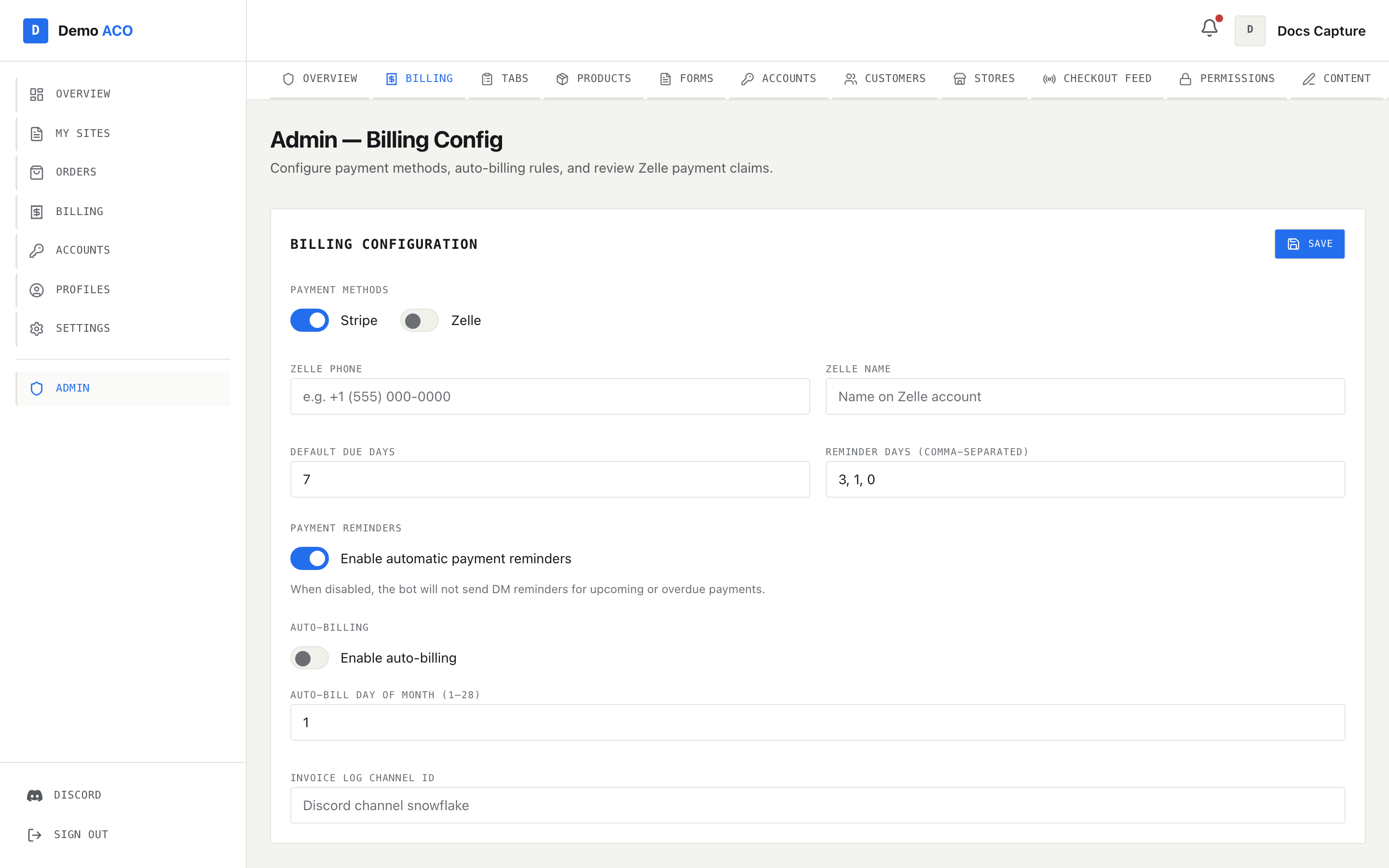
<figure><img src="https://619092889-files.gitbook.io/~/files/v0/b/gitbook-x-prod.appspot.com/o/spaces%2FYF2YIy2qTYyy9j61lr0Y%2Fuploads%2Fgit-blob-5bb66086bbc7eee67dcc85d12124e772602282d7%2Fbilling.png?alt=media" alt="The admin Billing Config page showing payment method toggles, Zelle details, due days, reminder days and auto-billing"><figcaption><p>The Billing Configuration card. Everything here except the Payment Reminders toggle is saved by the Save button at the top right.</p></figcaption></figure>

## Billing configuration

| Field                         | What it does                                                                                                                                            |
| ----------------------------- | ------------------------------------------------------------------------------------------------------------------------------------------------------- |
| Stripe                        | Offer card payment on invoices. Needs your own Stripe secret key — see [Setting up Stripe](/acoservice-documentation/setting-up-your-tenant/stripe.md). |
| Zelle                         | Offer Zelle. Payment happens outside the product; the member then files a claim you review.                                                             |
| Zelle Phone / Zelle Name      | Shown to the member on the invoice so they know where to send money.                                                                                    |
| Default Due Days              | Days from sending until an invoice is due. Also drives expiry (due date + 3 days).                                                                      |
| Reminder Days                 | Comma-separated days *before* the due date to send a reminder, e.g. `3, 1, 0`. Values that are not positive whole numbers are dropped when you save.    |
| Payment Reminders             | Master switch for reminder DMs. Saves the moment you flip it — no Save needed.                                                                          |
| Enable auto-billing           | Bill everyone with unpaid entries on a schedule instead of by hand.                                                                                     |
| Auto-Bill Day of Month (1–28) | The day the schedule fires. Read the warning below — it is not always a day of the month.                                                               |
| Invoice Log Channel ID        | A Discord channel ID. Operator notices (invoice sent, invoice paid, invoice expired) go there instead of DMing whoever triggered them.                  |

The Save button only appears once the current config has loaded. If loading fails, the form is hidden entirely and you get an error plus a Retry button. That is deliberate: a form full of defaults is indistinguishable from real settings, and saving it would overwrite your live config.

The Payment Reminders toggle writes a tenant feature, which requires a real tenant-admin account. A permission-granted admin will see the toggle snap back with the reason.

## Stripe vs Zelle

Enable at least one. With neither enabled, sending an invoice does nothing and reports "No payment methods enabled."

**Stripe** creates a hosted checkout session per invoice, on *your* Stripe key, with one line item per product. The member gets a pay button in their DM and on their [billing page](/acoservice-documentation/for-members/billing.md). If Stripe is on but no key is configured for your tenant, invoice sending quietly falls back to Zelle only.

{% hint style="warning" %}
Payment confirmation is instant only for tenants on the platform's Stripe account. If you use your **own** Stripe key, your account's webhooks cannot be verified by the platform, so the invoice is settled by a background re-check that runs **every 6 hours**. A member who pays by card may see "pending" for a few hours. Nothing is lost — the payment is picked up on the next pass.
{% endhint %}

**Zelle** is manual by design. The member sends money themselves, then submits a claim naming the account they paid from. The claim appears under **Pending Zelle Claims** with the claim ID, member, amount, Zelle name and claim time, and Approve / Deny buttons.

* **Approve** marks the linked invoice paid and flips every tab entry on that invoice to paid, in one transaction.
* **Deny** asks for an optional reason and records it on the claim.

{% hint style="info" %}
There is a gap in the web path: approving or denying **from the website** updates the records correctly but does not message the member. Only the `/billing zelle-claims` review flow currently sends the member DM ("approved" / "denied, reason: …"). Review on the site as normal — just tell the member yourself afterwards.
{% endhint %}

## Sending invoices

The **Send Invoices** section lists every member with unpaid tab entries: the member, their products consolidated by name with quantities, the total owed, and the entry count. Use **Send Invoice** on one row, or **Send All** in the section header. The Send All button only appears when there is at least one member to bill. With nobody outstanding you get "No users with unpaid tab entries."

Sending an invoice:

1. Groups the member's unpaid entries by product and totals them.
2. Creates a Stripe session, if Stripe is enabled.
3. Saves the invoice, sets its due date, and flips those entries from `unpaid` to `invoiced`.
4. DMs the member the itemised invoice with payment buttons, and posts a copy to their ticket channel if one is mapped.

Step 3 happens **before** the DM. A member with DMs closed is still billed — the invoice is real, their entries are reserved, and the failure is reported back to you in the result summary. That is the right way round: the invoice is the record, the DM is a notification about it.

Entries priced at $0 are never invoiced. You will see "All entries are awaiting price" for that member — set the price in [Products](/acoservice-documentation/for-tenant-admins/products.md) or with `/tab set-price`, then send again.

### Invoice states

| Status    | Meaning                                                                                                                                  |
| --------- | ---------------------------------------------------------------------------------------------------------------------------------------- |
| pending   | Sent and unpaid. Its tab entries are marked `invoiced`, so a re-send will not double-bill them.                                          |
| paid      | Settled by Stripe, or by you approving a Zelle claim. All linked entries flip to paid.                                                   |
| expired   | Passed its due date plus three days. **Its tab entries revert to `unpaid`** so they can be billed again, and you get an operator notice. |
| cancelled | Cancelled. The member no longer owes it.                                                                                                 |

## Reminders

With Payment Reminders on, the bot checks every six hours and DMs any member whose invoice is due in one of your Reminder Days — or is overdue, which always reminds. Each member gets at most one reminder per day, and the reminder is also posted to their ticket channel when one is mapped. Turning Billing off for the group stops reminders too.

## Auto-billing

Auto-billing checks hourly. When a group's billing day comes round it runs the same "Send All" as the button, attributed to your first tenant admin (falling back to the Discord server owner).

{% hint style="danger" %}
The console field is labelled "Auto-Bill Day of Month (1–28)", but the day is interpreted according to a **cadence** that this page does not expose. The stored cadence defaults to **weekly**, where the day means the ISO weekday (1 = Monday … 7 = Sunday). Left at the default, a value like `15` matches no weekday and auto-billing silently never fires. Set the cadence explicitly with `/billing auto-bill-schedule` (weekly, biweekly or monthly) before you rely on it, and confirm with `/billing config`.
{% endhint %}

Once a day's run completes, the group is stamped so later ticks that day do nothing. A transient failure — Stripe unreachable, for instance — deliberately leaves the day unstamped, so the next hourly tick tries again. Re-running cannot double-bill: only `unpaid` entries are picked up, and they are flipped to `invoiced` as soon as the invoice is saved.

Related: [Tabs](/acoservice-documentation/for-tenant-admins/tabs.md) · [Products and pricing](/acoservice-documentation/for-tenant-admins/products.md) · [Setting up Stripe](/acoservice-documentation/setting-up-your-tenant/stripe.md) · [Payments failing](/acoservice-documentation/troubleshooting/payments-failing.md)


---

# Agent Instructions
This documentation is published with GitBook. GitBook is the documentation platform designed so that both humans and AI agents can read, navigate, and reason over technical content effectively. Learn more at gitbook.com.

## Querying This Documentation
If you need additional information that is not directly available in this page, you can query the documentation dynamically by asking a question.

Perform an HTTP GET request on the following URL with the `ask` and `goal` query parameters:

```
GET https://acoservice.gitbook.io/acoservice-documentation/for-tenant-admins/billing.md?ask=<question>&goal=<user_goal>
```

`ask` is the immediate question: it should be specific, self-contained, and written in natural language.
`goal` is what the user is ultimately trying to achieve, the reason they need the answer. Sharing it helps GitBook give you a better, more relevant answer. A goal is most helpful when it describes the outcome the user wants rather than restating the question. For example, with `ask=how do I create an API token`, a goal like `build a script that syncs our docs to a CMS` lets GitBook tailor the answer to that use case.

The response will contain a direct answer to the question and relevant excerpts and sources from the documentation.

Use this mechanism when the answer is not explicitly present in the current page, you need clarification or additional context, or you want to retrieve related documentation sections.
