> For the complete documentation index, see [llms.txt](https://acoservice.gitbook.io/acoservice-documentation/llms.txt). Markdown versions of documentation pages are available by appending `.md` to page URLs; this page is available as [Markdown](https://acoservice.gitbook.io/acoservice-documentation/for-tenant-admins/accounts.md).

# Accounts

Hand retailer logins to members ahead of a drop, and keep track of which account has been used.

Some groups buy retailer accounts in bulk — aged Target logins, Walmart accounts, whatever survives the last purge — and hand them out to members before a drop. This page is that pool. You assign an account to a member for a store code, and when they fill in that store's form the account is already there for them to pick.

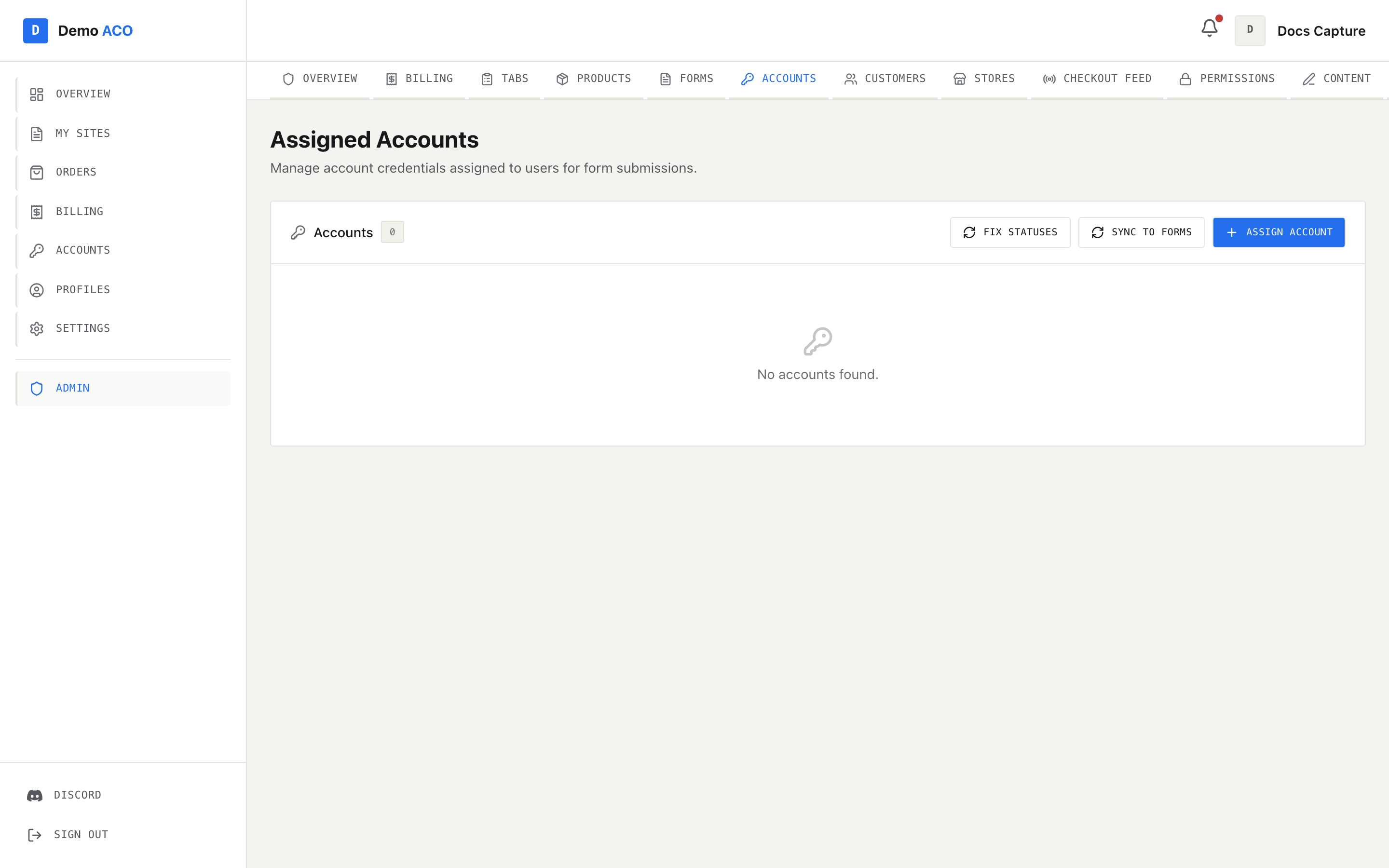
The page is titled **Assigned Accounts**. It sits behind the same `forms_enabled` flag as [Forms](/acoservice-documentation/for-tenant-admins/forms.md); with the flag off the route shows "Forms are not enabled for this group." rather than the table.

<figure><img src="https://619092889-files.gitbook.io/~/files/v0/b/gitbook-x-prod.appspot.com/o/spaces%2FYF2YIy2qTYyy9j61lr0Y%2Fuploads%2Fgit-blob-f2ffc413f97a5113f149b27e05d11c645dd2976b%2Faccounts.png?alt=media" alt="The Assigned Accounts page with an empty account list"><figcaption><p>One table, three maintenance buttons. The empty state reads "No accounts found." — which is also what you see when a filter excludes everything.</p></figcaption></figure>

## The table

| Column   | What it holds                                                                    |
| -------- | -------------------------------------------------------------------------------- |
| Email    | The account's login email                                                        |
| Member   | Who it is assigned to, shown with their avatar and display name                  |
| Store    | The store code the account belongs to                                            |
| Status   | `active` or `inactive`                                                           |
| Source   | **Admin** if you assigned it, **Self** if the member's own submission created it |
| Assigned | When the record was created                                                      |
| Actions  | Edit and Delete                                                                  |

Three dropdowns above the table filter by store, by status and by member. Changing a filter clears any row selection. Tick rows to get a bulk bar with **Delete Selected**; the count badge next to the "Accounts" heading always reflects the filtered list, not the total.

Passwords are stored encrypted and are never displayed anywhere in this page — not in the table, and not in the edit modal, where the password box starts blank and only takes a replacement. If you lose an account's password you re-enter it; you cannot read it back here.

## Assigning accounts

**Assign Account** opens a modal with **Single** and **Bulk** tabs.

In **Single** mode you pick a member, a store code, an email and a password. The member picker searches by display name, Discord ID, Discord tag and ACO name, and marks anyone who has not yet signed in to your site — you can still assign to them; the account is waiting when they arrive.

In **Bulk** mode you pick one member and one store code, then paste lines of `email:password`, one per line. The modal counts valid lines as you type ("14 valid line(s) detected") and skips anything without a colon. When it finishes you get a tally: how many were added, how many failed.

{% hint style="warning" %}
The store code dropdown is built from your existing form templates. If you have not created a template for a store yet, there is nothing to select and you cannot assign an account for it. Create the template first in [Forms](/acoservice-documentation/for-tenant-admins/forms.md).
{% endhint %}

Bulk assignment posts each line individually, so a long paste takes a moment and a partial failure leaves the successful rows in place.

## Editing an account

The edit modal changes the email, sets a new password (leave it blank to keep the current one), flips the status between Active and Inactive, and — the part that matters most — sets the **Linked submission**.

Linking ties this account to one of the member's form submissions for the same store. The dropdown lists their submissions labelled by email, last four digits of the card, and date, plus a **None** option. Saving with a link set marks that submission as using this provided account; changing the link unlinks the old submission first.

## Status, and what it actually means

Status is not something you normally set by hand. It tracks use:

| Status     | Meaning                                                                                                                                             |
| ---------- | --------------------------------------------------------------------------------------------------------------------------------------------------- |
| `inactive` | The account exists in the pool but no submission is using it. **Every newly assigned account starts here**, whether you added it or the member did. |
| `active`   | A form submission is using this account.                                                                                                            |

An account flips to `active` when a member submits a form that uses it. If a member submits a form with an `email:password` you never assigned, the account is saved automatically with source **Self** and marked active at the same time.

## The two maintenance buttons

**Fix Statuses** finds accounts marked `active` whose linked submission no longer exists and resets them to `inactive`. This happens after you clear submissions for a store: the submissions go, the accounts stay, and their status is now a lie. The result is reported either as the number reset or "All active accounts have linked submissions — nothing to fix."

**Sync to Forms** goes the other way. It finds submissions that are missing account details and fills them in from the linked account — useful when a member linked an account but their submission row still shows a blank Account column. It reports how many submissions it patched, or tells you there was nothing to do.

Neither button is destructive, and both are safe to press when you are not sure.

## Related

* [Forms](/acoservice-documentation/for-tenant-admins/forms.md) — templates, submissions, and the AYCD export that carries these credentials out.
* [Members' Accounts page](/acoservice-documentation/for-members/accounts.md) — what your members see and what they can add themselves.


---

# Agent Instructions
This documentation is published with GitBook. GitBook is the documentation platform designed so that both humans and AI agents can read, navigate, and reason over technical content effectively. Learn more at gitbook.com.

## Querying This Documentation
If you need additional information that is not directly available in this page, you can query the documentation dynamically by asking a question.

Perform an HTTP GET request on the current page URL with the `ask` query parameter, and the optional `goal` query parameter:

```
GET https://acoservice.gitbook.io/acoservice-documentation/for-tenant-admins/accounts.md?ask=<question>&goal=<endgoal>
```

`ask` is the immediate question: it should be specific, self-contained, and written in natural language.
`goal` is optional and describes the broader end goal you are ultimately trying to accomplish on behalf of the user. GitBook uses it to tailor the answer towards what is most useful for that goal.

The response will contain a direct answer to the question and relevant excerpts and sources from the documentation.

Use this mechanism when the answer is not explicitly present in the current page, you need clarification or additional context, or you want to retrieve related documentation sections.
