> For the complete documentation index, see [llms.txt](https://acoservice.gitbook.io/acoservice-documentation/llms.txt). Markdown versions of documentation pages are available by appending `.md` to page URLs; this page is available as [Markdown](https://acoservice.gitbook.io/acoservice-documentation/for-platform-operators/managing-tenants.md).

# Managing tenants

The tenant list and the nine tabs on a tenant's detail page, including why a blank secret field means "leave it alone".

**Platform → Tenants** lists every tenant on the platform. Each row opens a detail page with nine tabs.

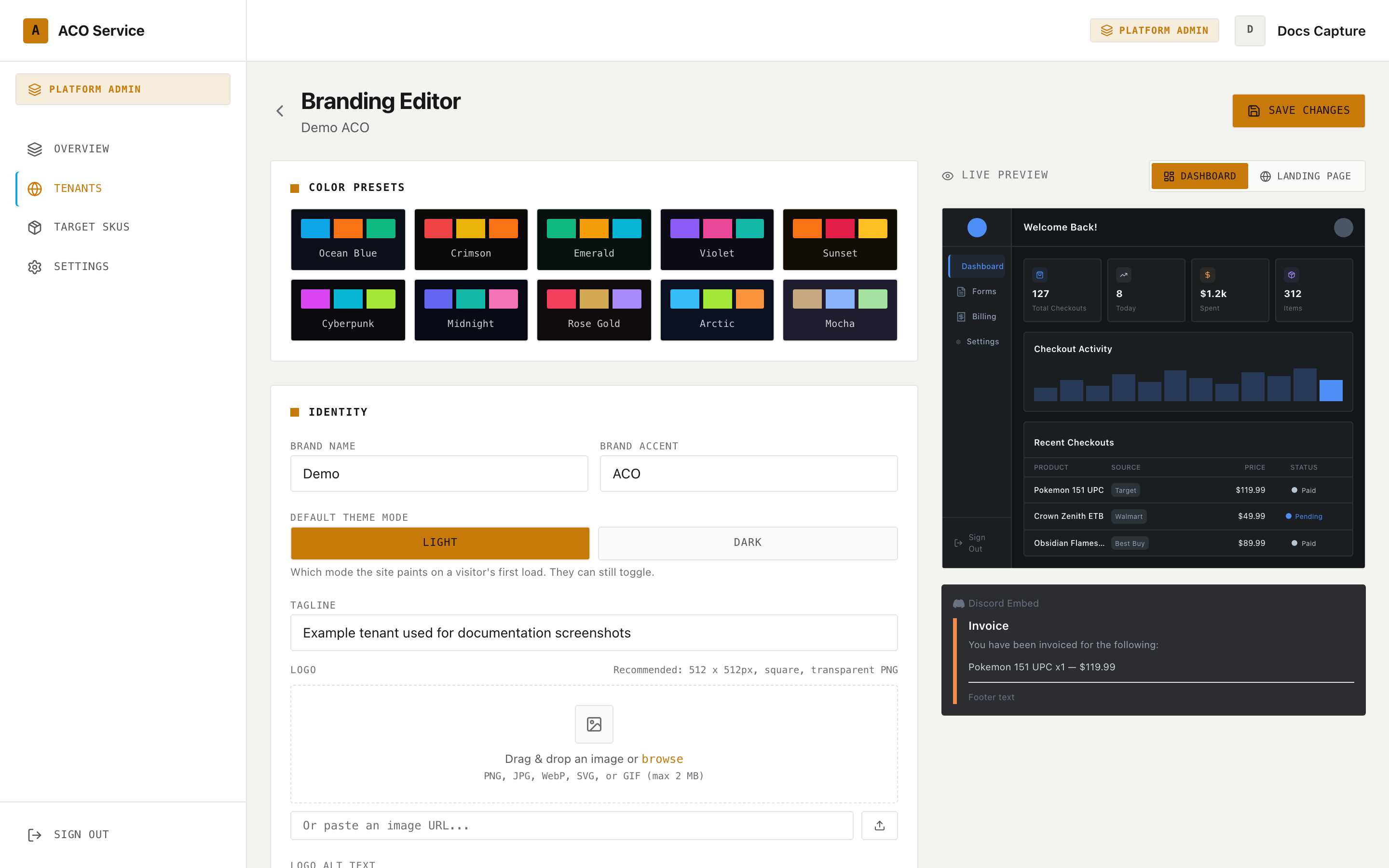
<figure><img src="https://619092889-files.gitbook.io/~/files/v0/b/gitbook-x-prod.appspot.com/o/spaces%2FYF2YIy2qTYyy9j61lr0Y%2Fuploads%2Fgit-blob-f1d2cffa05de5cb18d08b24f39b448065f97f21c%2Ftenant-branding.png?alt=media" alt="The branding editor opened from the platform console for a specific tenant"><figcaption><p>Branding can be edited from the platform console on a tenant's behalf. It is the same editor the tenant sees at Admin → Branding.</p></figcaption></figure>

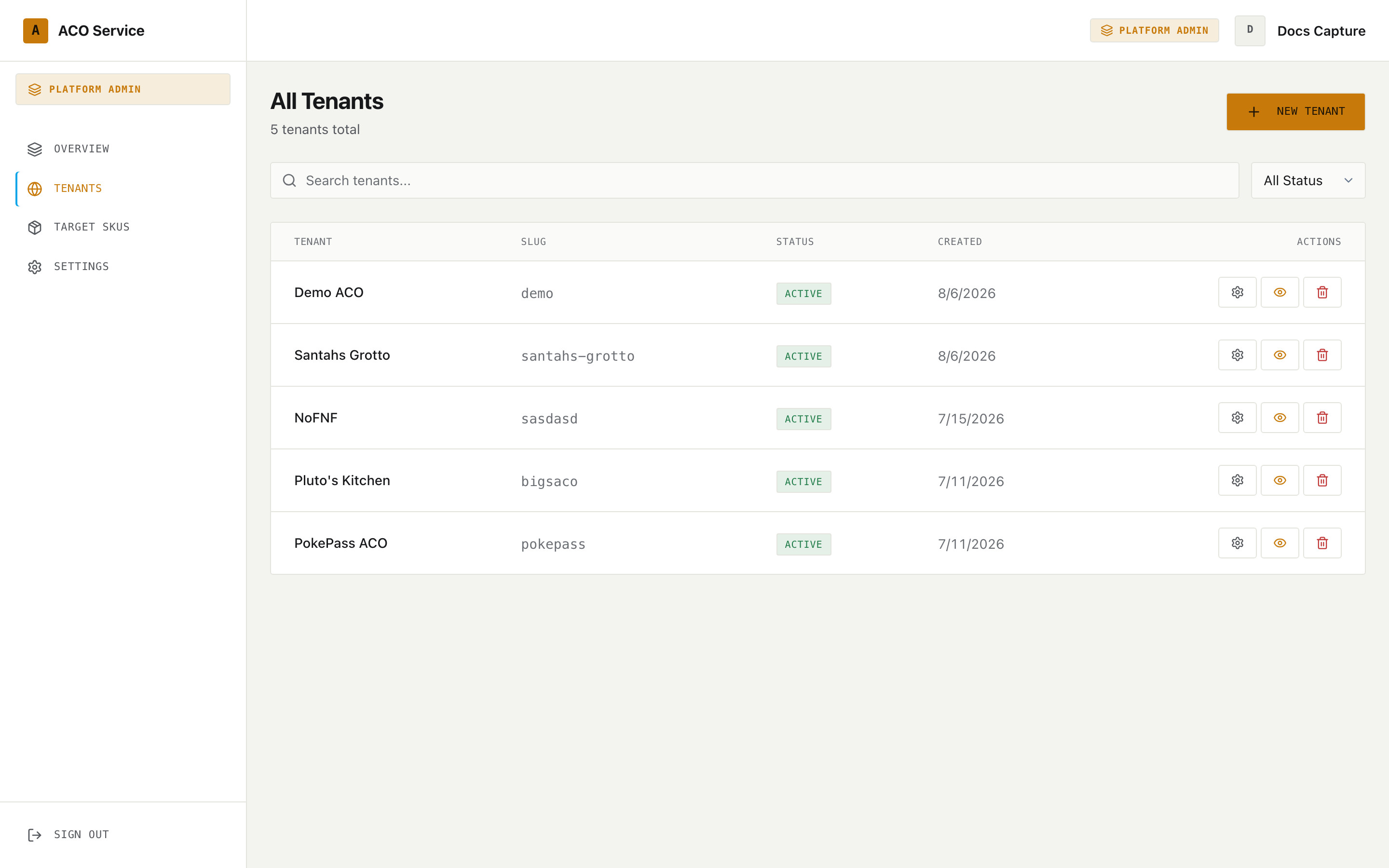
## The tenant list

<figure><img src="https://619092889-files.gitbook.io/~/files/v0/b/gitbook-x-prod.appspot.com/o/spaces%2FYF2YIy2qTYyy9j61lr0Y%2Fuploads%2Fgit-blob-2dfc23e9aeb5970eed02e08921cb835b434bf284%2Ftenants.png?alt=media" alt="The platform tenant list with a search box, a status filter and a table of tenants"><figcaption><p>Search matches both name and slug. The status filter is separate from it — both apply at once.</p></figcaption></figure>

A search box (matching name or slug) and a status filter (All / Active / Inactive / Suspended) sit above the table.

| Column  | Notes                                                                                         |
| ------- | --------------------------------------------------------------------------------------------- |
| Tenant  | The tenant name                                                                               |
| Slug    | Hidden on narrow screens                                                                      |
| Status  | Green for active, red for suspended, amber for anything else. Hidden on the narrowest screens |
| Created | Hidden below large screens                                                                    |
| Actions | Edit (gear), View as tenant (eye), Delete (bin)                                               |

The empty state distinguishes the two cases: "No tenants match your filters" when a search or filter is applied, "No tenants configured yet" otherwise.

**View as tenant** (the eye) starts an impersonation session and reloads you into that tenant's `/dashboard`. A full page reload is required so the layout picks up the tenant's branding and configuration. If the impersonation call fails, you stay where you are with an error — you are never dropped into the dashboard as yourself with no explanation.

### Deleting a tenant

**Delete** asks for confirmation first, and the confirmation says exactly what happens: the tenant's site stops resolving, its members lose access immediately, and the bot stops serving its guilds.

{% hint style="danger" %}
Deletion is a **soft** delete — the tenant's data is retained rather than cascade-wiped — but it is not cosmetic. Everything goes offline the moment you confirm. Restoring a deleted tenant is an operator-only database change; this panel cannot undo it.
{% endhint %}

The row disappears only once the delete is confirmed by the backend.

## The tenant detail page

The header carries the tenant's name and slug, a **View as Tenant** button and the current status badge. Directly below it is the [setup status checklist](/acoservice-documentation/for-platform-operators/setup-status.md), then the tabs.

### General

Tenant Name, Slug, and a Status dropdown with three values: **Active**, **Inactive**, **Suspended**. **Save** writes all three.

### Domains

The platform subdomain (`slug.acoservice.app`) appears first, tagged "Platform Subdomain". It is generated from the slug and cannot be removed here.

Custom domains are listed below with **Primary** and **Verified** badges where they apply. A text field and **Add Custom Domain** add another — domains added here are never marked primary. Below the field is a reminder of which host the customer's CNAME record should point at.

{% hint style="warning" %}
Removing a domain takes effect immediately — the tenant's site stops resolving on it at once. You are asked to confirm. Re-adding the domain restores the mapping, but the domain has to be verified again.
{% endhint %}

### Admins

Tenant admins manage their own tenant's branding, landing-page content, server link codes and feature toggles from their own admin panel, without needing you.

The empty state says it plainly: "No tenant admins yet — only platform admins can edit this tenant."

Add one by Discord user ID. The field accepts digits only, and admins added here get the `owner` role. Removing an admin asks for confirmation and warns that they lose access on their next sign-in or token refresh — not instantly.

The page also tells you where to find a Discord user ID: Discord → User Settings → Advanced → Developer Mode, then right-click the user → Copy User ID. It is an 18–19 digit number.

### Owner

Shows the ResiFactory owner account this ACO is billed under, or a picker to attach one. Attaching also makes the owner's linked Discord id a tenant admin with the owner role. Detaching stops billing under them and leaves that admin access in place until you remove it on the Admins tab above.

See [Attaching an owner to a tenant](/acoservice-documentation/for-platform-operators/creating-a-tenant.md) for the full panel, including what attaching and detaching do against a closed owner (ACO-24).

### Guilds

Lists linked Discord guild IDs, with a **Primary** badge on the primary one. Add a guild by ID; guilds added here are not marked primary.

Removing a guild asks for confirmation. The guild's data is retained — re-adding the same guild ID restores it — but until then the guild stops appearing for the tenant and its data is no longer served.

### OAuth

Five fields across two sections, Discord and Stripe, each with its own **Verify** button that tests the stored credentials live and reports the result inline.

| Field                  | Type       |
| ---------------------- | ---------- |
| Discord Client ID      | Plain text |
| Discord Client Secret  | Secret     |
| Discord Bot Token      | Secret     |
| Stripe Secret Key      | Secret     |
| Stripe Publishable Key | Plain text |

{% hint style="danger" %}
**Secret fields never load their stored value.** Secrets are stripped before the record reaches your browser, so those three boxes are always empty when you open this tab — empty does *not* mean "no secret stored".

A blank secret box means **unchanged**. Blank fields are omitted from the save entirely, so opening this tab and pressing **Save Credentials** leaves every stored secret exactly as it was. Type into a box only when you intend to replace that credential.
{% endhint %}

The **placeholder text** is what tells you whether a secret is stored. Compare:

| Placeholder                             | Meaning                          |
| --------------------------------------- | -------------------------------- |
| "client secret stored — blank keeps it" | A secret is stored               |
| "no client secret set"                  | Nothing is stored for this field |

The same pattern applies to the bot token and the Stripe secret key. After a successful save the secret boxes are cleared again, and the placeholders update.

The Client ID and Stripe publishable key are not secrets — they load their real values and are always sent on save.

This tab repeats the credential distinction that matters most: the bot token (Dev Portal → Bot → Reset Token) is a different credential from the client secret. The client ID and secret authenticate sign-in; the bot token is what runs the tenant's slash commands. It also tells you the exact command to run after saving a new bot token — `scripts/provision-tenant-bot.sh <slug>` on the app host, covered in [Provisioning a tenant bot](/acoservice-documentation/for-platform-operators/provisioning-a-bot.md).

### Branding

This tab holds a single button, **Open Branding Editor**, which navigates to the full editor with its live preview. Nothing is edited on the tab itself.

### Content

Five landing-page fields: **Hero Title**, **Hero Subtitle**, **Discord Invite URL**, **Footer Tagline** and **Footer Disclaimer**. **Save Content** writes them together.

### Features

Eleven toggles:

| Toggle            | Turns on                               |
| ----------------- | -------------------------------------- |
| Stripe Payments   | Card payments through Stripe           |
| Zelle Payments    | Zelle with manual confirmation         |
| Forms             | Custom member forms                    |
| Checkout Feed     | The live checkout feed                 |
| Profiles          | Saved checkout profiles                |
| Releases          | Release signups                        |
| Server Linking    | Linking additional Discord servers     |
| Billing           | Invoices, balances and payment history |
| SKU Management    | The tenant's own SKU catalog tools     |
| SKU User Editing  | Members editing their own SKU lists    |
| Payment Reminders | Automated payment reminders            |

Each toggle saves on click — there is no Save button. The switch moves immediately, and if the save fails it flips back and an error toast tells you why. A toggle that stays where you put it has been persisted.


---

# Agent Instructions
This documentation is published with GitBook. GitBook is the documentation platform designed so that both humans and AI agents can read, navigate, and reason over technical content effectively. Learn more at gitbook.com.

## Querying This Documentation
If you need additional information that is not directly available in this page, you can query the documentation by asking a question.

Perform an HTTP GET request on the following URL with the `ask` and `goal` query parameters:

```
GET https://acoservice.gitbook.io/acoservice-documentation/for-platform-operators/managing-tenants.md?ask=<question>&goal=<user_goal>
```

`ask` is the immediate question: it should be specific, self-contained, and written in natural language.
`goal` is what the user is ultimately trying to achieve, the reason they need the answer. Sharing it helps GitBook give you a better, more relevant answer. A goal is most helpful when it describes the outcome the user wants rather than restating the question. For example, with `ask=how do I create an API token`, a goal like `automate deployments from our CI pipeline` lets GitBook tailor the answer to that use case.

The response will contain a direct answer to the question and relevant excerpts and sources from the documentation.

Use this mechanism when the answer is not explicitly present in the current page, you need clarification or additional context, or you want to retrieve related documentation sections.