> For the complete documentation index, see [llms.txt](https://acoservice.gitbook.io/acoservice-documentation/llms.txt). Markdown versions of documentation pages are available by appending `.md` to page URLs; this page is available as [Markdown](https://acoservice.gitbook.io/acoservice-documentation/for-members/billing.md).
# Billing and your tab
How charges land on your tab, how to pay them by Stripe or Zelle, and what each billing status means.
Your tab is the running list of what you owe your group. Charges land on it automatically, you decide which ones to settle and when, and the page keeps the full history.
Open **Billing** from the member navigation.
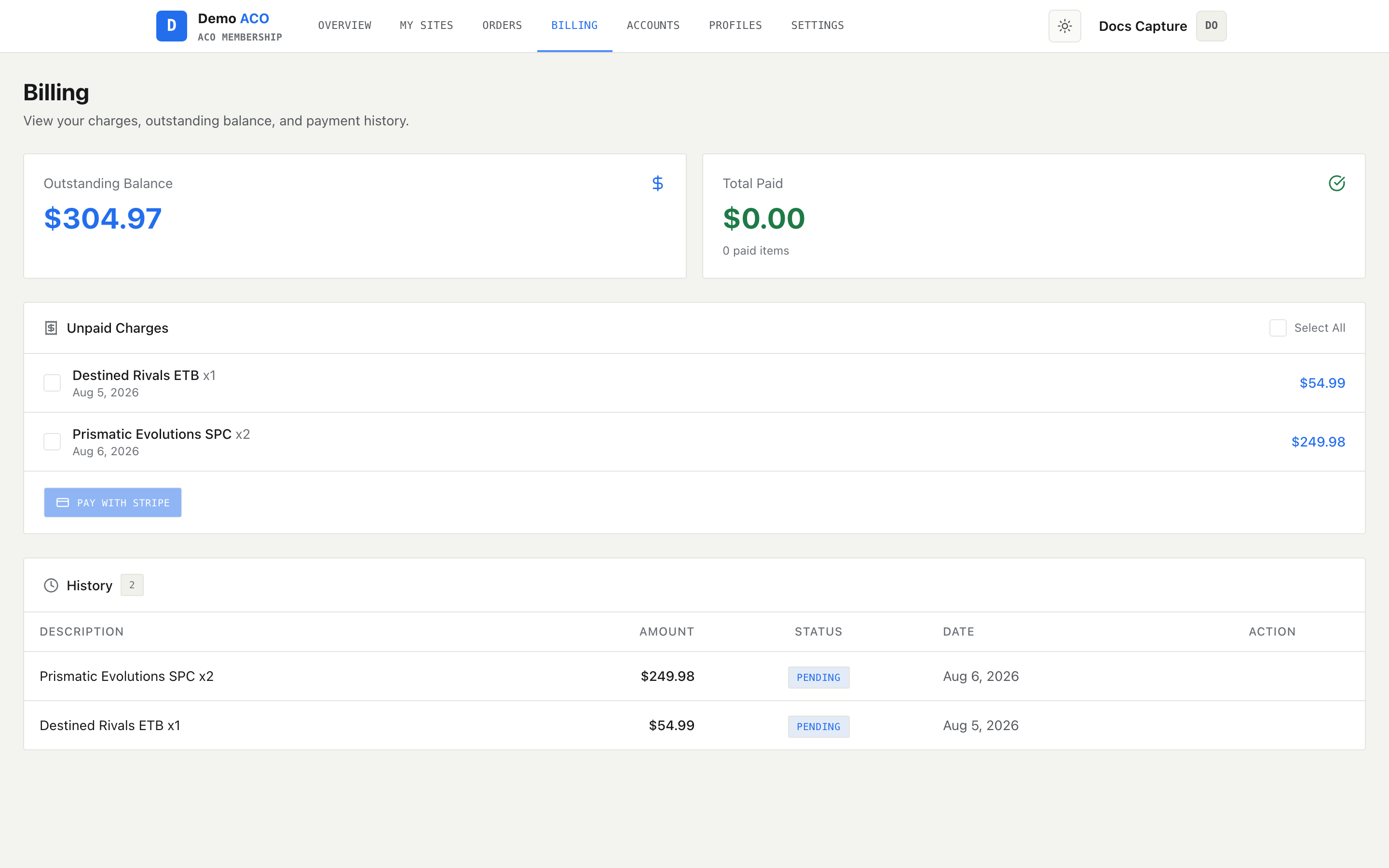
Outstanding balance and total paid on top, the charges you can pay in the middle, full history below.
## How the tab accumulates
You do not add anything to your tab yourself. When the group's bot sees a checkout in the feed and can attribute it to you, it adds a line at the price the admin configured for that product. Review holds are billed the same way, tagged "Review Hold — may be canceled"; **declines are never billed** — you get the DM and the row on your orders page, but no tab line. Admins can also add lines by hand — a manual adjustment, a charge from outside the feed.
Two things change this:
* If the group has not turned on automatic accumulation, nothing is added from the feed and every charge is entered by an admin.
* If you have been marked free for a store, the checkout is still recorded so the admin can see what you got, but it is written as already paid and your balance does not move.
## The two summary cards
**Outstanding Balance** is everything still pending or overdue — unpaid tab lines plus unpaid invoices. If anything is overdue, a red line underneath counts how many. **Total Paid** is the lifetime total you have settled with this group, and how many items that covers.
## Unpaid charges
This panel only appears when you have charges that are not yet on an invoice. Each row is a product, quantity, the date it was added, and the amount. Click a row to select it, or use **Select All**. The header shows the running total of what you have selected.
Then pick a payment method. The buttons that appear depend on what your group turned on:
* **Pay with Stripe** creates an invoice for the selected charges and opens a Stripe checkout page in a new tab.
* **Pay with Zelle** creates the invoice and opens the Zelle instructions.
If neither is configured you get "No payment methods configured. Contact your admin." — the group has not finished its payment setup and there is nothing you can do from here.
{% hint style="info" %}
Selecting charges and pressing a pay button **creates an invoice immediately**, whether or not you complete the payment. Those charges move off this panel and into History as a pending invoice. If you change your mind, cancel the invoice (see below) and they return here as unpaid.
{% endhint %}
## History
Every charge and every invoice, newest first.
| Column | What it holds |
| ----------- | ----------------------------------------------------------------------------------------------- |
| Description | `Product xQty` for a tab line, or `Invoice #` plus the first eight characters of the invoice ID |
| Amount | The line or invoice total |
| Status | See the table below |
| Date | The date paid for settled items, otherwise the date created |
| Action | Pay, Zelle, or Cancel — depending on the row |
Invoice rows that carry a product breakdown have a chevron; click the row to expand it and see each product, its unit price and its line total. Paid invoices also carry a small badge saying whether they settled by **Stripe** or **Zelle**. Cancelled rows are dimmed and struck through.
### What each status means
| Status | Meaning |
| ----------- | --------------------------------------------------------------------- |
| `Pending` | Owed and not yet settled |
| `Overdue` | Pending, and the invoice was created more than seven days ago |
| `Paid` | Settled — by card, by an approved Zelle claim, or written off as free |
| `Cancelled` | Voided. The charges it covered went back on your tab as unpaid |
{% hint style="warning" %}
**Overdue is calculated from the invoice's age, not from its due date.** Any pending invoice older than seven days is shown as Overdue here, even if the group set a longer payment window. Treat it as a nudge rather than a penalty, and check with your admin if the dates look wrong.
{% endhint %}
## Paying by Stripe
Stripe opens in a new tab, so allow pop-ups for the site if nothing happens. Complete the payment there. Two things about what follows are worth knowing:
* When the payment finishes Stripe redirects to `discord.com`, not back to the billing page — that placeholder is the configured return URL, and it is expected. Nothing is wrong; go back to your tab and refresh.
* The invoice does not always flip to **Paid** the instant you pay. Depending on how the group's Stripe account is wired, settlement is either immediate or is picked up by a background check that runs every six hours. If you paid and the row still says Pending, give it that long before raising it.
An invoice that is never paid eventually expires, and its charges go back onto your tab as unpaid so you can pay them another way. There is no "Expired" badge on this page — an expired invoice keeps showing as Pending or Overdue in History, so trust the reappearing Unpaid Charges panel over the old row.
## Paying by Zelle
Zelle is a manual, honour-then-verify flow. The modal shows the **name** and **phone number** to send the money to — send it yourself in your banking app, outside this site. If more than one of your invoices is unpaid, pick which one you are paying from the **Invoice to Pay** dropdown. Then enter the name on your Zelle account and press **Submit Zelle Claim**.
{% hint style="warning" %}
**Submitting a Zelle claim does not mark the invoice paid.** It puts the claim in your admin's review queue. They match it against the money that actually arrived and approve it, and only then does the invoice become Paid. Enter the name your bank sends the transfer under, or your admin will not be able to match it.
{% endhint %}
## Cancelling an invoice
Pending and overdue invoices have a **Cancel** action. Cancelling voids the invoice and puts every charge it covered back on your tab as unpaid, ready to be paid a different way. You can only cancel your own invoices, and only while they are unpaid — a paid or already-cancelled invoice cannot be reopened from here.
## "Your last invoice DM didn't reach you"
A red banner at the top of the page means the bot tried to DM you an invoice and Discord refused to deliver it. The error and the time are printed underneath.
Almost always this is your Discord privacy settings: the bot can only DM you if you allow direct messages from members of that server. Fix that in Discord, then press **Resend** on the banner. If it still fails, see [Members not getting DMs](/acoservice-documentation/troubleshooting/dms-not-arriving.md).
You never need the DM to pay — everything on it is on this page. The banner matters because it means you may have missed being told you were billed at all.
## If the page will not load
"Couldn't load your billing" with a **Try again** button means the site could not reach your group's bot. The tab data lives with the bot, so if the bot is down the page has nothing to show. See [The bot is offline or missing](/acoservice-documentation/troubleshooting/bot-unresponsive.md).
Related: [Orders and checkouts](/acoservice-documentation/for-members/orders.md) for what produced these charges, and [Settings and notifications](/acoservice-documentation/for-members/settings.md) to control invoice and reminder DMs.
---
# Agent Instructions
This documentation is published with GitBook. GitBook is the documentation platform designed so that both humans and AI agents can read, navigate, and reason over technical content effectively. Learn more at gitbook.com.
## Querying This Documentation
If you need additional information that is not directly available in this page, you can query the documentation dynamically by asking a question.
Perform an HTTP GET request on the current page URL with the `ask` query parameter, and the optional `goal` query parameter:
```
GET https://acoservice.gitbook.io/acoservice-documentation/for-members/billing.md?ask=&goal=
```
`ask` is the immediate question: it should be specific, self-contained, and written in natural language.
`goal` is optional and describes the broader end goal you are ultimately trying to accomplish on behalf of the user. GitBook uses it to tailor the answer towards what is most useful for that goal.
The response will contain a direct answer to the question and relevant excerpts and sources from the documentation.
Use this mechanism when the answer is not explicitly present in the current page, you need clarification or additional context, or you want to retrieve related documentation sections.