> For the complete documentation index, see [llms.txt](https://acoservice.gitbook.io/acoservice-documentation/llms.txt). Markdown versions of documentation pages are available by appending `.md` to page URLs; this page is available as [Markdown](https://acoservice.gitbook.io/acoservice-documentation/for-members/accounts.md).
# Accounts
Retailer logins tied to a store — what is stored, how accounts get assigned to you, and why an account you just added reads as inactive.
An **account** is a login at a retailer — the email and password used to check out at Target, Best Buy or whichever stores your group runs. Accounts are not the same thing as the cards and addresses on [Profiles](/acoservice-documentation/for-members/profiles.md): a profile says who is buying and how, an account says which retailer identity is doing the buying.
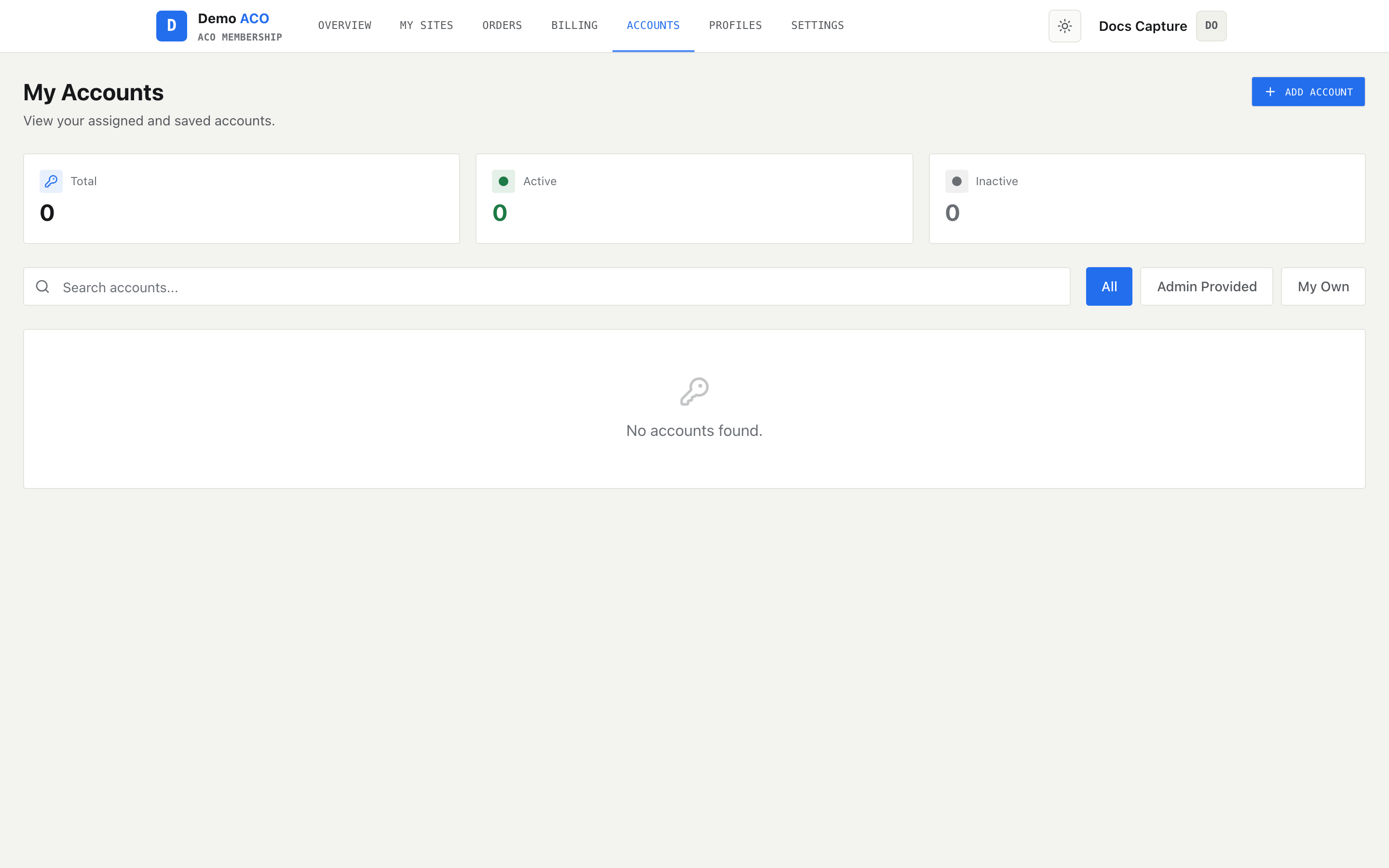
Open **Accounts** in the member navigation. The page is titled **My Accounts** and shows only accounts belonging to you.
Every row carries three badges: the store code, where the account came from, and whether it is currently in use.
## Reading the page
Three tiles across the top count your accounts by status: **Total**, **Active**, **Inactive**.
Below them, a search box and three filter tabs. Search matches the account's email or its store code. The tabs are:
| Tab | Shows |
| -------------- | --------------------------------- |
| All | Everything |
| Admin Provided | Accounts an admin assigned to you |
| My Own | Accounts you added yourself |
Each row shows the email address and three badges — the store code, `Admin` or `Self`, and `active` or `inactive` — plus a count of submissions on the right if there are any.
If nothing matches, the list reads **No accounts found.** If the request itself failed you get **Couldn't load your accounts.** with a **Try again** button; that is a connection problem, not an empty account list.
### Expanding a row
Clicking a row opens it to show:
* **Assigned By** — who created the account entry. For an account you added yourself this is your own Discord ID. For an admin-assigned account the admin console records the literal `admin_web`, not a person's ID.
* **Assigned At** — when it was created.
* **Submission History** — every form submission linked to this account, each with its store code, the date, and the submission ID. If there are none it reads *No submissions yet.*
## Where accounts come from
There are exactly two sources, and the `Admin` / `Self` badge tells you which.
**Admin** accounts are assigned to you from the admin console. Your group bought or created the login and handed it to you.
**Self** accounts are ones you added — either through the **Add Account** button here, or automatically: when you submit a form containing a login that is not already saved, it is stored as a Self account for that store without you asking.
## Adding an account
**Add Account** opens a modal with a **Single** / **Bulk Import** toggle and a **Store** dropdown.
The store list is whatever store codes your group's admin has configured. If it reads **No stores configured**, nobody has set any up yet and you cannot add an account — that is an admin task.
**Single** takes an email and a password. Only the email is required; the password is optional and can be filled in later by an admin or by a form submission.
**Bulk Import** takes a textarea, one account per line, in `email:password` form. A live counter under the box reports how many lines it can read before you submit. A line with no colon is accepted as an email with no password. Empty lines are skipped.
Both paths report back in the modal — `Account added!` or `N account(s) added!` — and the list refreshes underneath without closing the modal, so you can keep adding.
{% hint style="info" %}
**Adding the same email twice for the same store does not create a duplicate.** It updates the password on the account already there. That is the supported way to fix a password you mistyped.
{% endhint %}
## What is stored
| Field | Stored as |
| ------------------------ | ------------------------- |
| Email | Encrypted (AES-256-GCM) |
| Password | Encrypted (AES-256-GCM) |
| Store code | Plain, always upper-cased |
| Source | `admin` or `self` |
| Status | `active` or `inactive` |
| Assigned by, assigned at | Plain |
{% hint style="warning" %}
**You cannot read a password back.** The list this page loads never includes the password field — not masked, not present. The stored password is decrypted only when a form submission needs it. If you forget a retailer password, re-add the account with the correct one; you cannot look it up here.
{% endhint %}
## Why a new account says `inactive`
Status does not mean "working" or "banned". It means "has this account been used in a submission yet?"
Every account is created `inactive`, whether an admin assigned it or you added it. It flips to `active` the first time it is attached to a form submission.
So an account you added thirty seconds ago reading `inactive` is normal and expected — it has simply not been used. Your admin can also reset accounts that are marked active but have no submission behind them back to `inactive`, which is why a status can move backwards without anyone touching the account itself.
## Accounts and site access
Adding an account for a store also gives you access to that store's forms, if you do not already have it. The grant is created automatically with no expiry.
It will not, however, resurrect access an admin has revoked. If your access to a store was taken away, adding an account for it changes nothing — you still need the admin to restore the grant.
[More about sites →](/acoservice-documentation/for-members/sites.md)
## Related
* [Forms](/acoservice-documentation/for-members/forms.md) — where an account gets attached to a submission and turns active
* [Profiles](/acoservice-documentation/for-members/profiles.md) — cards, addresses and mailbox credentials
* [Your sites](/acoservice-documentation/for-members/sites.md) — which stores you can submit for
---
# Agent Instructions
This documentation is published with GitBook. GitBook is the documentation platform designed so that both humans and AI agents can read, navigate, and reason over technical content effectively. Learn more at gitbook.com.
## Querying This Documentation
If you need additional information that is not directly available in this page, you can query the documentation dynamically by asking a question.
Perform an HTTP GET request on the current page URL with the `ask` query parameter, and the optional `goal` query parameter:
```
GET https://acoservice.gitbook.io/acoservice-documentation/for-members/accounts.md?ask=&goal=
```
`ask` is the immediate question: it should be specific, self-contained, and written in natural language.
`goal` is optional and describes the broader end goal you are ultimately trying to accomplish on behalf of the user. GitBook uses it to tailor the answer towards what is most useful for that goal.
The response will contain a direct answer to the question and relevant excerpts and sources from the documentation.
Use this mechanism when the answer is not explicitly present in the current page, you need clarification or additional context, or you want to retrieve related documentation sections.