> For the complete documentation index, see [llms.txt](https://acoservice.gitbook.io/acoservice-documentation/llms.txt). Markdown versions of documentation pages are available by appending `.md` to page URLs; this page is available as [Markdown](https://acoservice.gitbook.io/acoservice-documentation/day-to-day-operations/after-the-drop.md).

# After the drop

Attaching orphaned checkouts, correcting tab entries, invoicing, and chasing what does not get paid.

The drop is over and the charges are on tabs. What is left is reconciliation: attach the checkouts that did not resolve to anyone, correct the entries that came through wrong, invoice, and follow up. Do it in that order — invoicing first means invoicing the wrong amounts.

## 1. Attach the orphaned checkouts

Open **`/admin/customers`**. If the health banner is amber, the **Unmatched profiles** panel below it lists every profile string from the last seven days that resolved to nobody, with a **Hits** count and, where the string was in a recognisable shape, the retailer and parsed name it was read as. Strings the parser could not decompose show as *non-canonical*.

Sort by Hits and work top down. For each row:

* **Assign** — the profile belongs to somebody you already have. Pick the customer, tick the identifier spellings to add, and add any extras as a comma-separated list.
* **New** — nobody matches. Creates the customer with that profile's name and identifiers pre-filled.

The Assign dialog has the part that does the real work, under *"When this customer matches past checkouts"*:

| Option                                                    | Effect                                                                                                                                                             |
| --------------------------------------------------------- | ------------------------------------------------------------------------------------------------------------------------------------------------------------------ |
| **Attach orphaned checkouts to this customer**            | Walks the last 30 days of unmatched checkout events; any that now resolve to this customer become matched, and — if auto-accumulate is on — are added to their tab |
| **DM the member for each retroactively matched checkout** | Sends the same embed the live poller would have sent. Respects the member's notification preferences                                                               |

Both are on by default. If you only want to fix the mapping for next time without retroactive charges or a burst of DMs, turn them off.

The confirmation tells you exactly what happened: identifiers added, past checkouts rematched, entries added to the tab, DMs sent and DMs failed. Read it — "3 DMs failed" is a follow-up you would otherwise miss.

If the customer already has every identifier the profile needs, there is nothing to add and the submit button reads **Rematch past checkouts** instead of **Add N identifiers** — which is how you re-run the backfill on its own.

## 2. Correct the tab entries

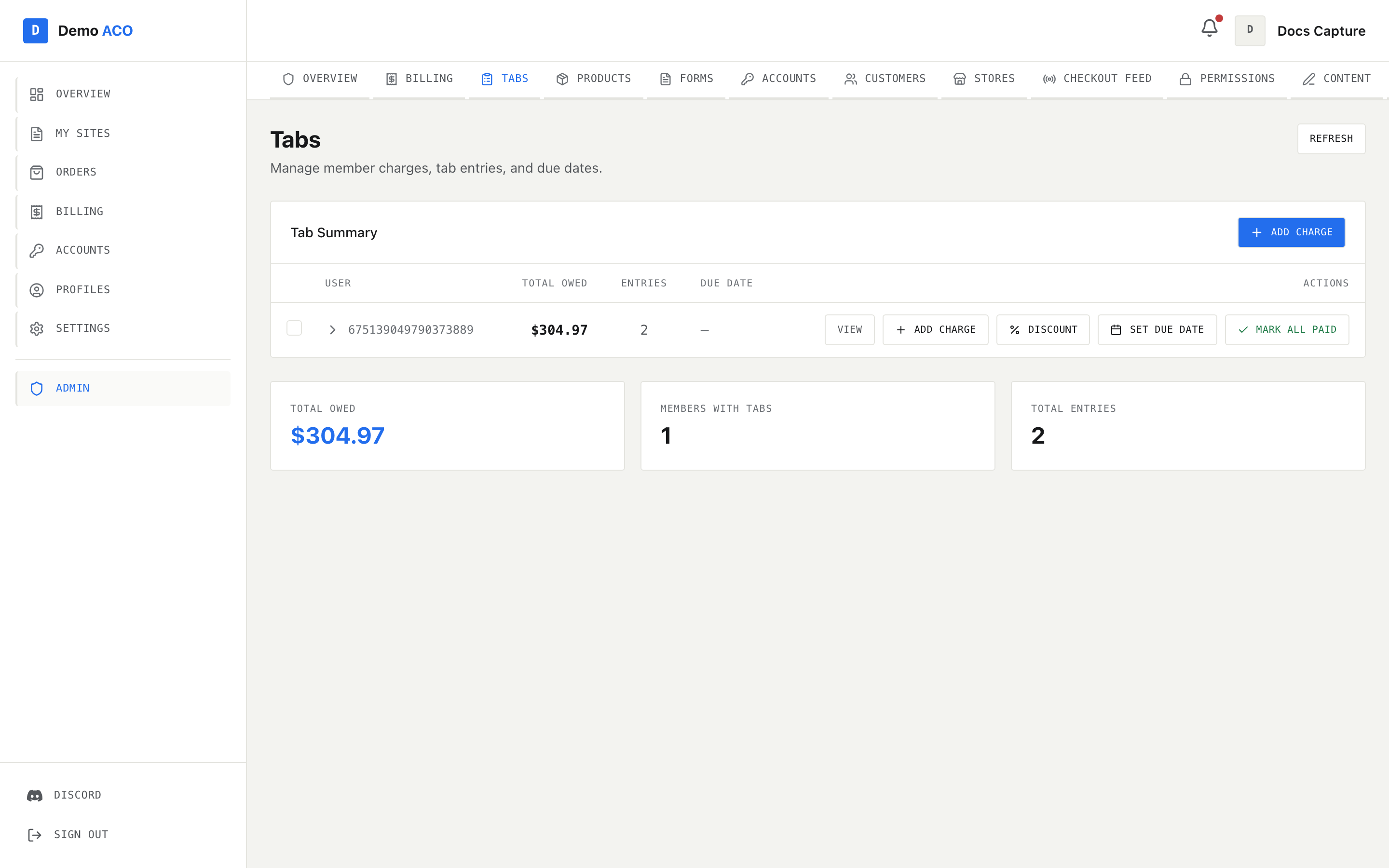
Open **`/admin/tabs`** and expand the members who checked out.

<figure><img src="https://619092889-files.gitbook.io/~/files/v0/b/gitbook-x-prod.appspot.com/o/spaces%2FYF2YIy2qTYyy9j61lr0Y%2Fuploads%2Fgit-blob-cbdff8f6a5ea90e7985e26407d76318dbb26e22e%2Ftabs.png?alt=media" alt="The Tabs admin page showing the tab summary tree and per-member totals"><figcaption><p>Expand a member to see entries grouped by product and price. Right-click any row for its actions.</p></figcaption></figure>

Right-click is where the editing lives. On a single entry: **Edit qty…**, **Edit unit price…**, **Edit notes…**, **Override status…**, **Move to a different product group…**, **Duplicate entry**, **Show in checkout\_events…** and **Delete entry**. On a product group: **Edit unit price…** for the whole group, **Rename product across tab…**, **Apply discount to group…**, **Split group…** (each multi-quantity entry becomes individual qty-1 entries), **Merge with another group…**, **Open source channel ↗** and **Move group to invoice…** (which invoices the group's entries and marks them invoiced).

The three things worth scanning for:

* **Entries with no price.** These came from checkouts whose product was missing or priced at zero. Fix the price on `/admin/products` so future drops are right, then edit these entries — correcting the catalogue does not retroactively reprice anything already booked.
* **Review holds that turned into cancels.** They were booked with the note *"Review Hold — may be canceled"*. If the order was cancelled, delete the entry. Deleting a whole group asks you to confirm, showing the entry count and total.
* **Entries on the wrong member.** See [Wrong member charged](/acoservice-documentation/troubleshooting/wrong-member-charged.md).

Marking entries paid in bulk asks for confirmation once the selection reaches 20 entries or $200, and states the count and total in the prompt.

{% hint style="warning" %}
Putting a member on **free ACO** with "Free for everything" also marks their existing unpaid and invoiced entries as paid, zeroing their tab. The dialog says so before you save, and the result toast reports separately if the exemption saved but the balance could not be cleared — in that case the money is still owed.
{% endhint %}

## 3. Invoice

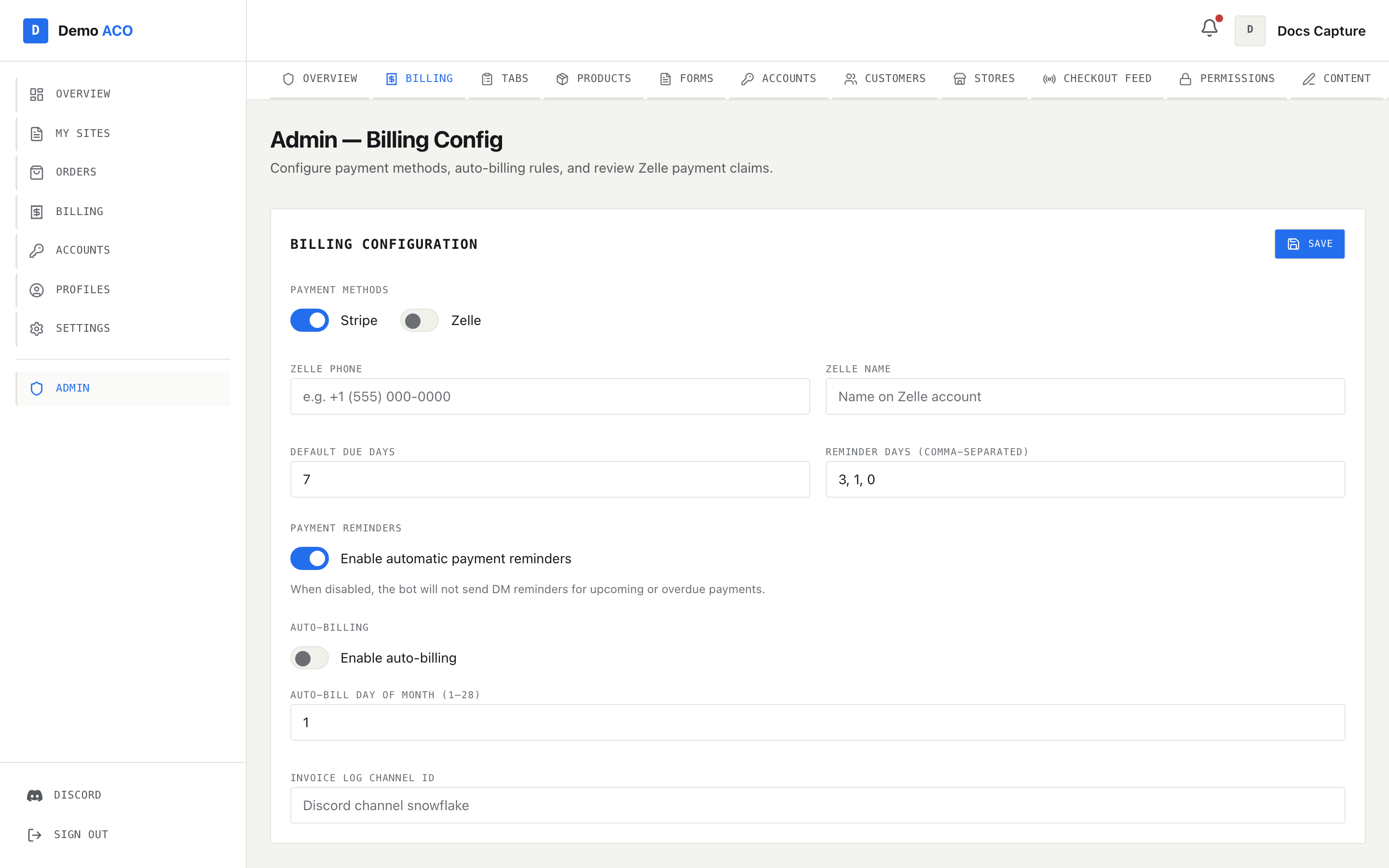
Open **`/admin/billing`** and scroll to **Send Invoices**.

<figure><img src="https://619092889-files.gitbook.io/~/files/v0/b/gitbook-x-prod.appspot.com/o/spaces%2FYF2YIy2qTYyy9j61lr0Y%2Fuploads%2Fgit-blob-5bb66086bbc7eee67dcc85d12124e772602282d7%2Fbilling.png?alt=media" alt="The admin billing page with billing configuration, Zelle claims and the send-invoices table"><figcaption><p>Send Invoices lists every member with unpaid entries, the products making up the balance, and the total.</p></figcaption></figure>

The table lists **User**, **Products** (consolidated by name with quantities), **Total Owed** and **Entries**. **Send Invoice** bills one member; **Send All** bills everyone in the list. Either way the result message tells you what actually went out.

You can also invoice one member from `/admin/tabs` by right-clicking their row and choosing to send an invoice — it DMs them their outstanding balance and records the invoice.

If **Auto-Billing** is enabled, a scheduled run does this for you on the **Auto-Bill Day of Month** you set. Two things about it are worth knowing:

* It only bills entries that are still **unpaid**, and flips them to **invoiced** as soon as the invoice is saved. Re-running it cannot double-bill.
* If a transient failure stopped some members being billed, the cycle is deliberately left unmarked so the next run retries the remainder. Configuration problems — no payment method enabled, an unpriced entry, a bounced DM — do not block the cycle, because re-running would produce the same refusal.

## 4. Chase what does not get paid

### The member's side

A member's [Billing](/acoservice-documentation/for-members/billing.md) page shows their **Outstanding Balance**, a count of overdue invoices, their unpaid charges with checkboxes, and **Pay with Stripe** / **Pay with Zelle** for whichever methods you enabled. An invoice that has been pending for more than seven days is shown to them as **Overdue**.

### Zelle claims

When a member pays by Zelle they submit a claim with the name on their Zelle account. Those queue up in **Pending Zelle Claims** on `/admin/billing`, with **Claim ID**, **User ID**, **Amount**, **Zelle Name** and **Claimed At**.

Check each against your Zelle app, then **Approve** or **Deny**. Denying prompts for a reason, which is sent to the member. Approvals are attributed to the admin who clicked, so this is an audited action.

Do this regularly, not only after drops. A claim sitting unreviewed is a member who believes they have paid and is still being reminded.

### Reminders

Reminders run against tabs that have a **due date**. Set one per member from `/admin/tabs` (Set Due Date), or with `/tab set-due` in Discord; **Default Due Days** on `/admin/billing` and the comma-separated **Reminder Days** list decide when the nudges go out. Overdue tabs are reminded every run, at most once per day per member. The reminder is DM'd and also posted to the member's ticket channel if one is mapped.

Reminders stop entirely if the tenant's payment-reminders toggle is off, which is the switch labelled **Enable automatic payment reminders** on `/admin/billing`.

### Invoices that expire

Pending invoices are checked periodically against Stripe. A paid session settles the invoice and marks its entries paid. An expired one reverts its tab entries to **unpaid** so they become eligible for billing again — so an expired invoice is not a lost charge, it just goes back into the pool.

### DMs that never arrived

If a member says they never got their invoice, they can see it themselves: their Billing page shows a red banner reading *"Your last invoice DM didn't reach you"* with the underlying error, and a **Resend** button. Their [Settings](/acoservice-documentation/for-members/settings.md) page has **Send test DM** to confirm the fix worked.

Almost always the cause is closed DM privacy for your server. See [Members not getting DMs](/acoservice-documentation/troubleshooting/dms-not-arriving.md).

From your side, right-clicking a member on `/admin/tabs` offers to resend their notifications; the confirmation reports how many items were queued.

## 5. Close the loop

Work through the notes you kept during the drop. Products that booked wrong are fixed in step 2 — check the catalogue price too, or it happens again. Profile names that came through unmatched are fixed in step 1, and staying fixed is the point: the identifier you added is what matches them next time.

Then run the feed preview from the [pre-drop checklist](/acoservice-documentation/day-to-day-operations/pre-drop-checklist.md) once more. Channel permissions change, bots get renamed, source channels get archived. Catching it now beats catching it thirty seconds before the next window.

***

For the between-drops rhythm, see [Daily and weekly tasks](/acoservice-documentation/day-to-day-operations/drop-day.md).


---

# Agent Instructions
This documentation is published with GitBook. GitBook is the documentation platform designed so that both humans and AI agents can read, navigate, and reason over technical content effectively. Learn more at gitbook.com.

## Querying This Documentation
If you need additional information that is not directly available in this page, you can query the documentation dynamically by asking a question.

Perform an HTTP GET request on the current page URL with the `ask` query parameter, and the optional `goal` query parameter:

```
GET https://acoservice.gitbook.io/acoservice-documentation/day-to-day-operations/after-the-drop.md?ask=<question>&goal=<endgoal>
```

`ask` is the immediate question: it should be specific, self-contained, and written in natural language.
`goal` is optional and describes the broader end goal you are ultimately trying to accomplish on behalf of the user. GitBook uses it to tailor the answer towards what is most useful for that goal.

The response will contain a direct answer to the question and relevant excerpts and sources from the documentation.

Use this mechanism when the answer is not explicitly present in the current page, you need clarification or additional context, or you want to retrieve related documentation sections.